We set up call tracking on client websites so that we can track the amount of times users convert by calling them instead of filling out a contact form. Below are the steps to implement this type of tracking with Google Tag Manager, and instructions to set up goal tracking for your new data in Google Analytics.
First things first, log into Google Tag Manager using accounts@ventamarketing or [email protected].
https://tagmanager.google.com/
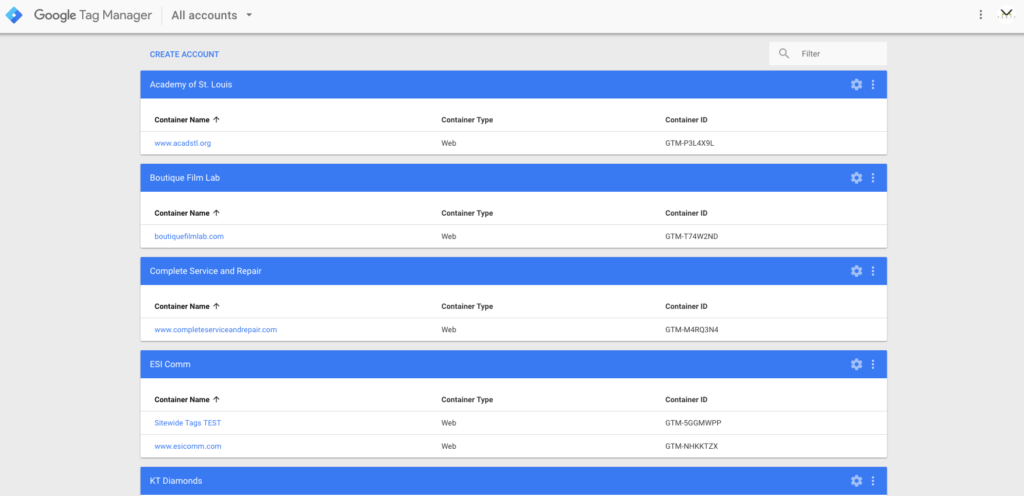
After logging in you should see the dashboard for all accounts. Select the account that you need to set up call tracking on.
If the client does not have GTM set up yet, follow the instructions here before moving forward.
1. SETUP VARIABLES
To start add a new built-in variable to GTM that you’ll use to get the URL for a link that has been clicked.
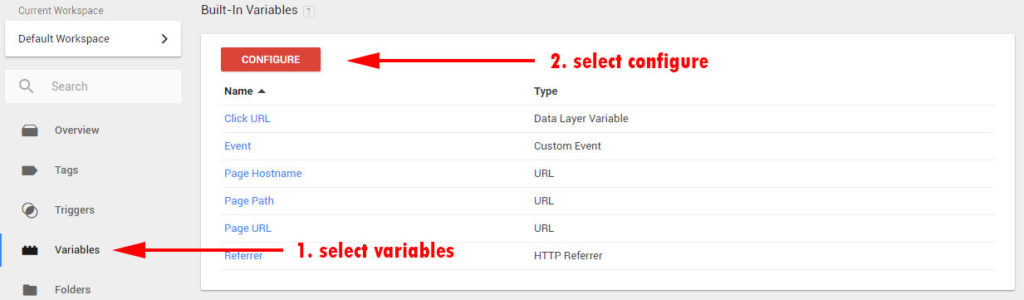
1. The first thing you need to do is click on the variables tab and then hit the configure button.
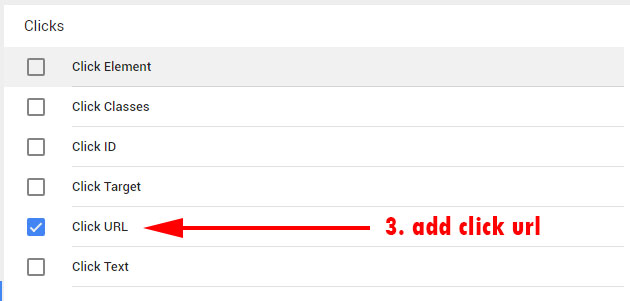
2. Next scroll down the list until you find Click URL, hit the checkbox next to this and then close the window.
That’s all you need to do with variables for now.
2. SETUP THE LINK TRIGGER
The second part of configuring GTM for phone call tracking is to configure a trigger.
A trigger is a condition that evaluates to either true or false at runtime. Triggers are attached to a tag when the tag is fired or not fired. The Trigger is basically the mechanism that says when a phone number link has just been clicked” and the Tag an action to deal with it.
Without the Trigger the tag will never fire.
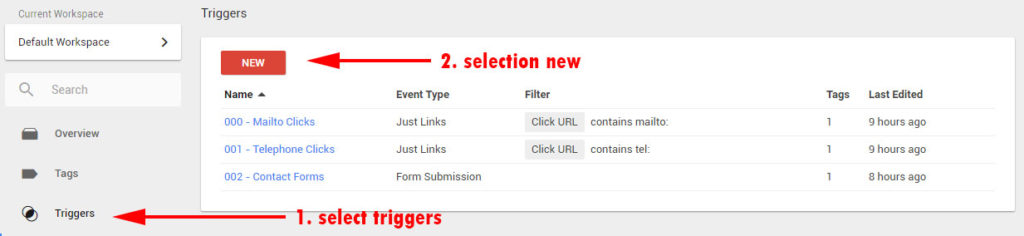
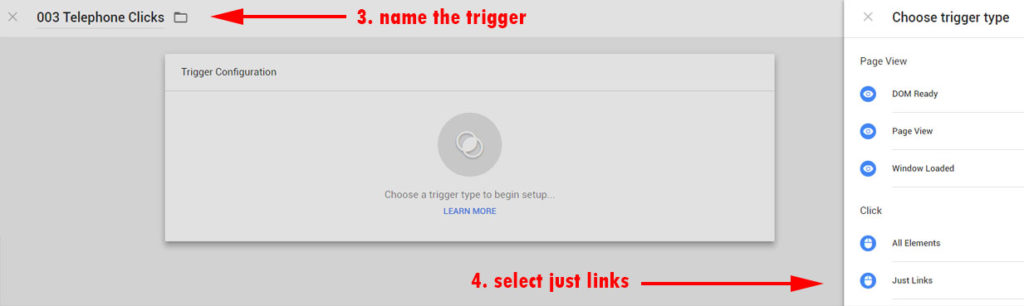
1. Select triggers from the tabs and then selection new
2. Give the trigger a name, anything you like, and select the option for “Just Links”
This says that we only want this trigger to fire when a link has been clicked. In this case, we are concerned with links that contain “tel:” followed by a phone number.
3. Select Wait for Tags, leave the default 2 second time period, and then enter in the details as shown in the screenshot below.
The following settings are telling this trigger to fire when a link click occurs within any page on a site i.e. matches RegEx .*. Since you want this trigger to only occur when clicking a “tel:” link, some additional information is needed.
The second rule sets the trigger to fire only when the Click URL, i.e. the url of the link that was clicked, contains tel:
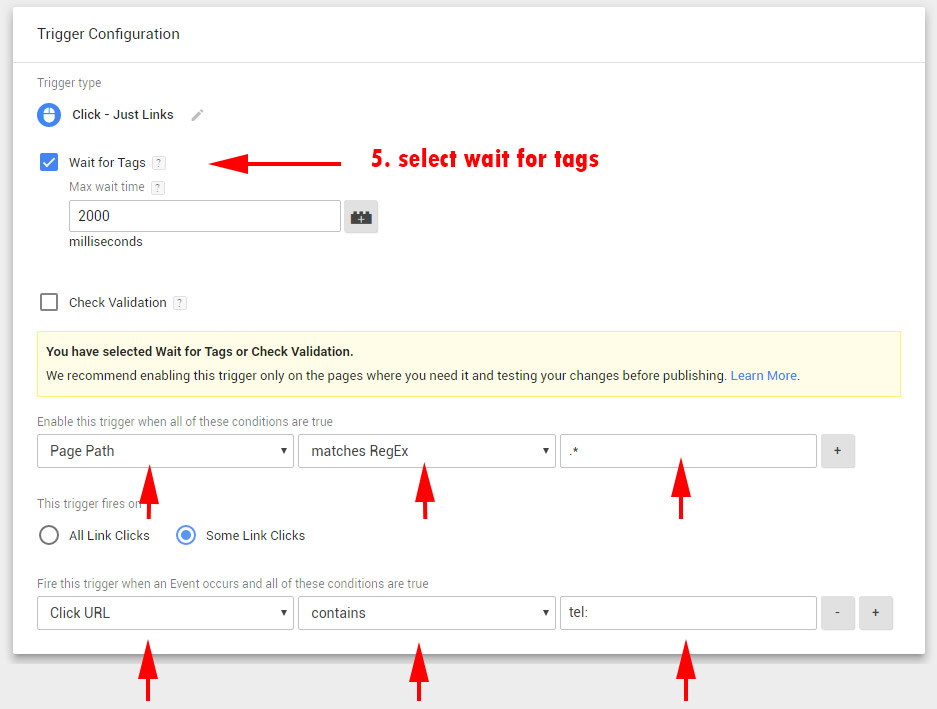
After you’ve added the settings above hit the save button.
3. SETUP THE TAG
Now, the final step is to set up the tag.
Tags typically execute, or fire, when the page loads, or in response to some interaction on the page such as a trigger. As we’ve already configured the tel: trigger we can now assign that to our tag to specify what should happen when the trigger fires.
Use the Tag to generate an event to Google Analytics.
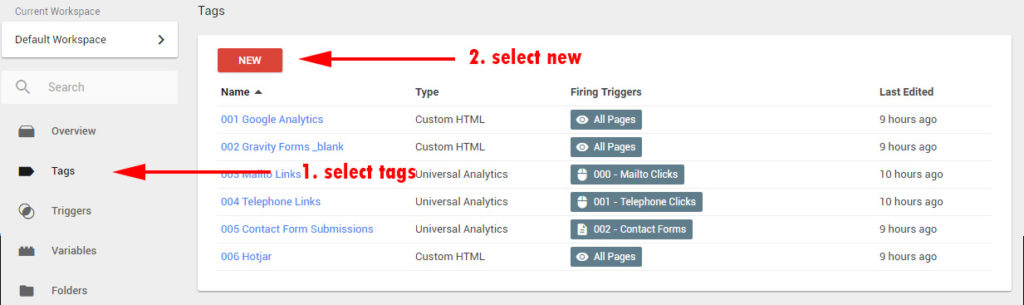
1. Select tags from the tag and then select new
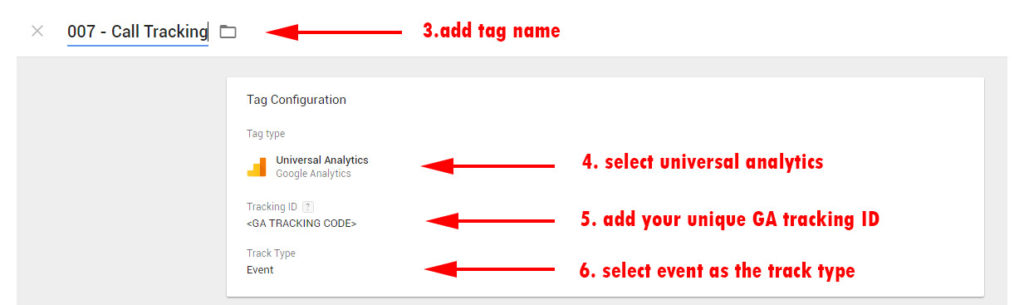
2. Give the tag a name and select the tag configuration. From the options select universal Google Analytics.
Create a tag type using Google Analytics. For the tracking ID ensure that you add the client’s unique tracking ID from Google Analytics.
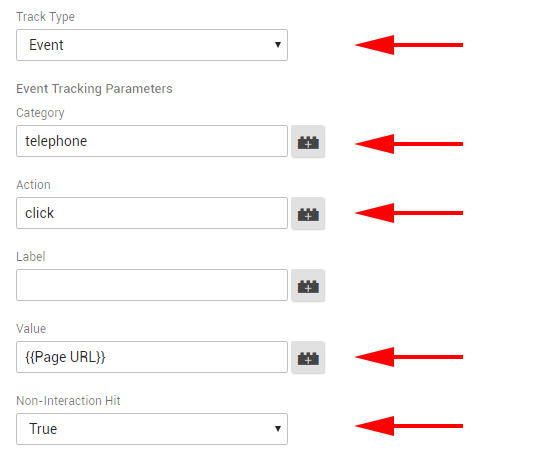
Finally, set the Track Type to be an event.
3. Configure the Event that will fire using this Tag.
Setup the event in the same way as shown in the example. You need to generate a GA event with the event Category of “telephone”, the action of “click” and the event to have a value of the Page URL.
The Non-Interaction Hit should be set to True so that the event does not affect our bounce rate.
B default events affect the bounce rate. If a user lands on a page and an event is triggered, they should not be considered a bounce even if they don’t view any additional pages on your site. If someone engages with the page in some way, it is a good idea to exclude them from being counted as a bounce.
4. SETUP GOAL IN GOOGLE ANALYTICS
Before setting up the Goal in Google Analytics it’s important to understand that our event is firing.
Go to your site and click on one of the telephone links, then go back to Google Analytics and look in the real-time reports for events. You should see the following:

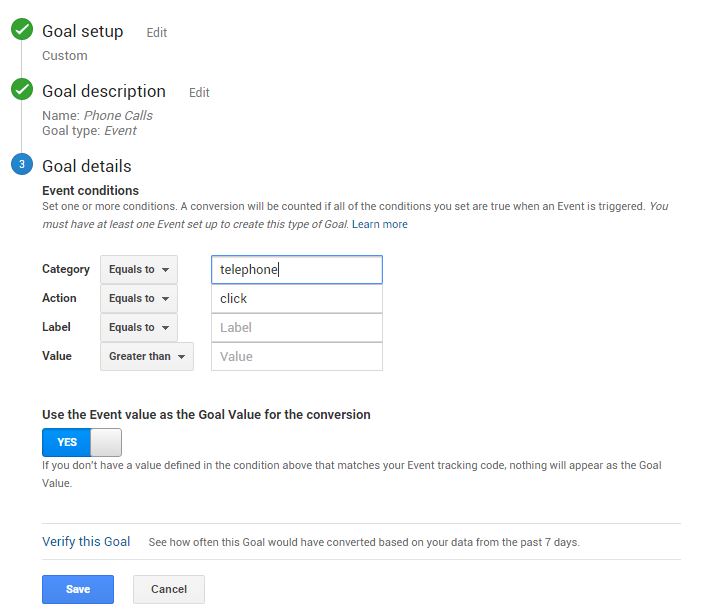
Now you need to set up a Goal in Google Analytics for a custom event with the event Category of “telephone” and an Event Action of “click”.
Congratulations, you’re done. Now go back to Google Analytics and select Real Time, then go to the site on your phone and click any button to call the client’s business and hang up right away. Verify that GA tracked the call.