Adding a Client
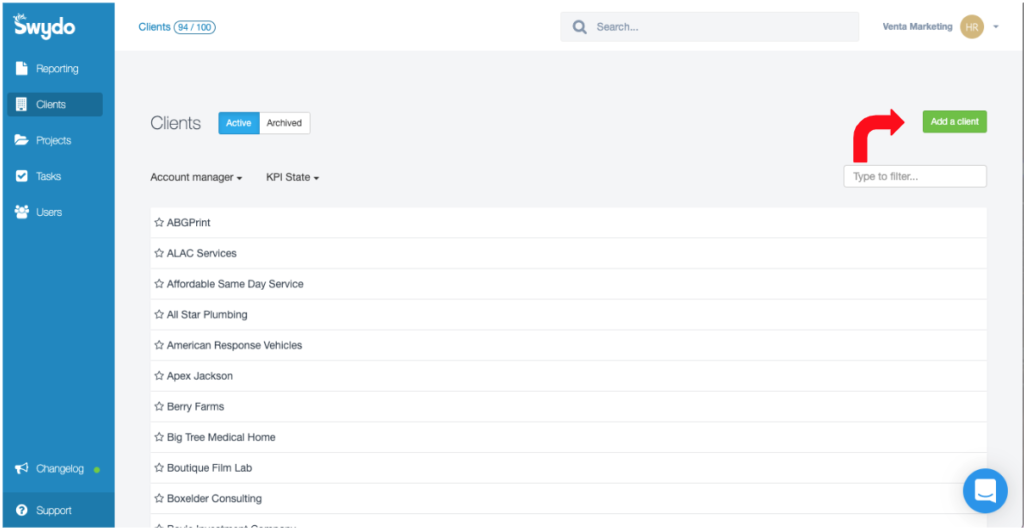
During the onboarding process, all new clients should be added to Swydo and built out prior to launch. This will save you time during reporting if your templates are already built. Log into Swydo and click “Add a client”.
Naming Your Client
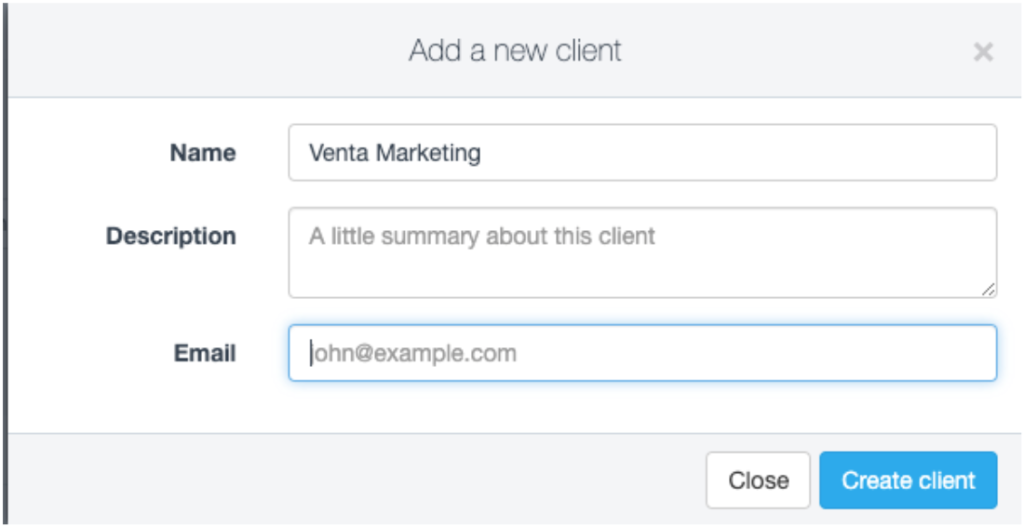
When adding your new client use their full business name.
Ex: Venta Marketing
Not: Venta
Ex: The Epigenetics Healing Center
Not: Epigenetics, Dr. Goodbinder, or Goodbinder
Adding the Client Logo
All client’s logos should be included on their report to make them more personalized.
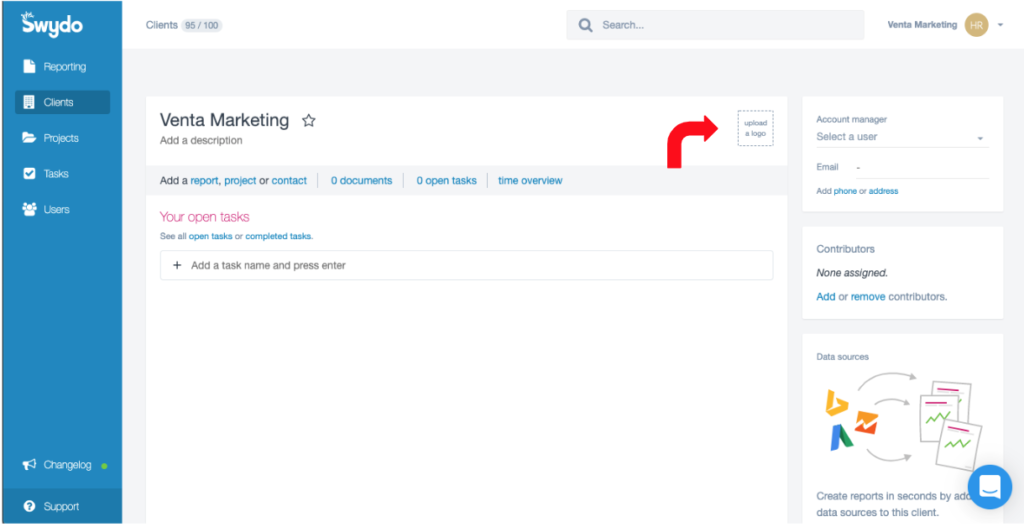
Click on the upload logo and upload their logo. This will automatically upload it to all reports that you create.
Creating Your First Report
Click on add a report and name the report Date, Client Name, Digital Marketing Report
Ex: 0220 Venta Marketing Digital Marketing Report
You will choose the template based on the services they are receiving.
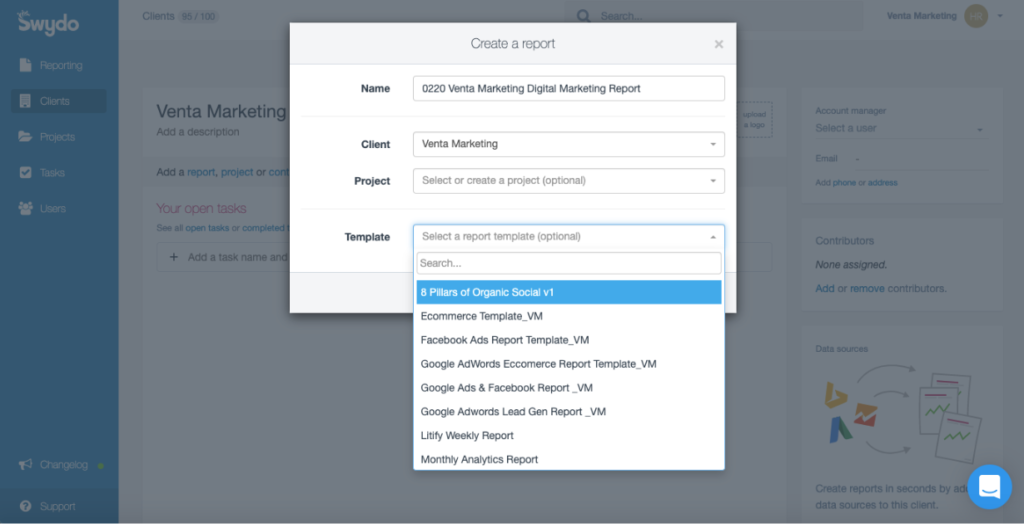
Create a Custom Report
You can use the template to get you started but the report will need to be customized to match the campaigns and goals of the client. Each client has different goals and metrics that are important to them. Make sure that those are at the top and clear.
Getting Your Report Ready
Unlink your report from the template and select your data sources.
You will also need to edit the header section to remove the title, author and date.
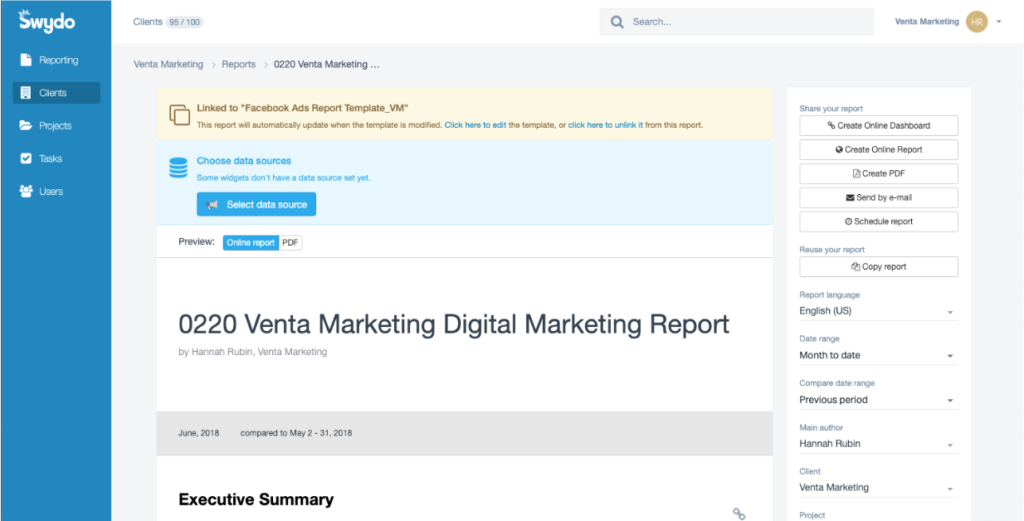
Add Customized Data Metrics
Click the + to add either widgets or KPIs for additional metrics.
Make sure that you update the names to ensure that the KPI is understandable
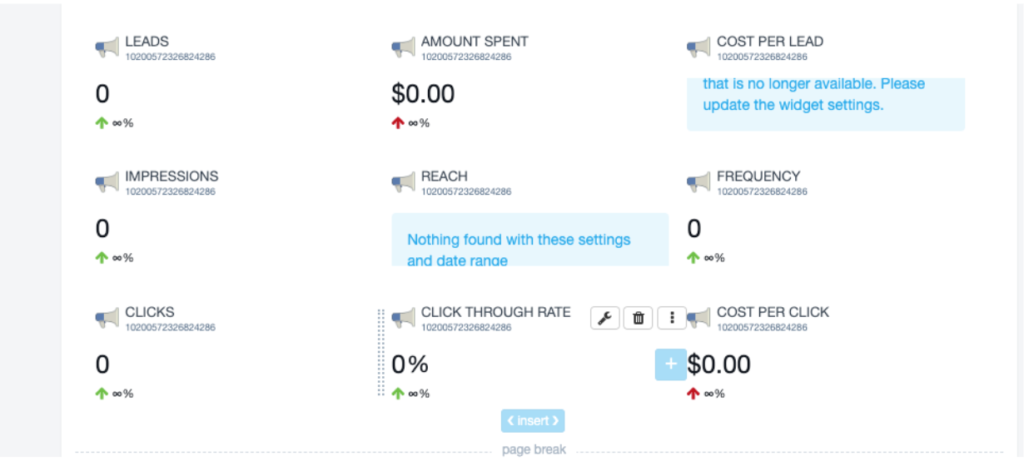
Saving Your Report
All reports should be saved as a pdf and then sent to the client. You can still use the pdf link but when we do the online report we could lose our records of campaign data.
Additional FAQs
How to Export Rankings Reports
- Login to Agency Analytics
- Search for the client you are attempting to export the Rankings Report for and click on their profile to enter their "Dashboard"
- From the sidebar path to SEO>Rankings
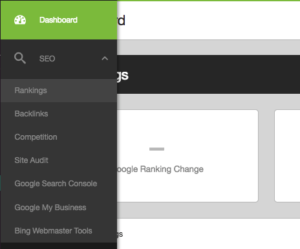
- On the Rankings Page, ensure "All Time" is selected from the drop-down
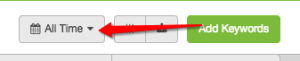
- After selecting "All Time" click the Download Button to begin the export

- Agency Analytics will process the export and then make it available to you in the notification section
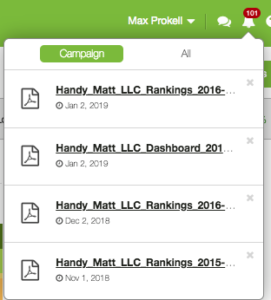
- Click the report you'd like to begin the download to
- Path to the "Rankings Reports" Google Drive Folder (Internal>Departments>SEO>Rankings Reports)
- If not made yet, create the proper folder for the current reporting Month/Year
- Upload the rankings report to Google Drive
- Change the share settings to "Anyone with a Link can View"
Finding a Client Lead Report
- Enter Google Drive and Path to the Clients Main Folder
- Inside the Client's main folder, select "Leads"

- Select the proper "Leads Sheet" for the client
NOTE: Some clients will have a running leads sheet and others will have monthly lead sheets that you must duplicate and rename.
TIP: If you cannot find a lead sheet try typing in "[CLIENT NAME] Lead" to the Google Drive Search Bar
Exporting and Creating Lead Form Sheets
- Login to the client's Wordpress Website (Note: if the client does not have a Wordpress website you will need to research the most proper way to export contact information from their website)
- Select "Forms" in the sidebar of Wordpress

- Select "Import / Export" in the Sidebar under "Forms"

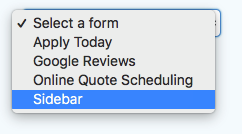
- Check your Client's Leads Report to determine which form(s) you'll be exporting and choose your first from the dropdown
- Once on the export page, select fields that you'd like to export. Again, check your lead sheet to confirm the proper fields. Common fields you'll be exporting include:
- Date
- Name
- Phone Number
- Comments
- Enter the Date Range for the Month you're reporting on. (IE. November = 11/1/19 - 11/31/19)
- Click "Download Export File"
- Open the File and Copy + Paste the Appropriate Fields to the Client's Leads Sheet
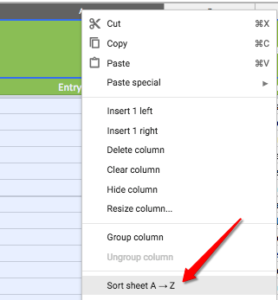
- After copying over all relevant information, right click on the "Date" field of the client's Lead Sheet and Sort from A>Z. This will make sure the form submissions appear in chronological order.
- If your client has multiple forms that are being tracked on the leads sheet, repeat the previous 9 steps for each form being tracked.
- Once all forms have been entered copy the link to the Google Sheet and Paste it into the "Links" section of the client's Teamwork Project named (MM/YY - LEAD REPORT)
Creating an Organic Marketing Monthly Report with Swydo
- Login to Swydo
- In the sidebar, path to "Clients"
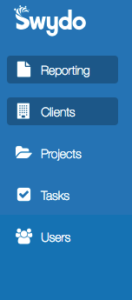
- Select the client you are creating the report for from the list available
- Select the client's previous monthly report
- In the right sidebar, click "Copy Report"
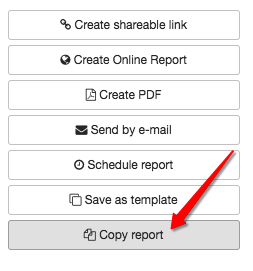
- Remove "Copy of" from the Name of the report and rename it to the current month using MM/YY
- Ensure that the Date Range is set for "Last Month"
- You can do this by setting a "Custom Date Range" or choosing "Last Month"
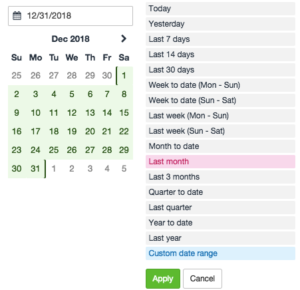
- You can do this by setting a "Custom Date Range" or choosing "Last Month"
- Ensure the "Compare Date Range" is set to "Same Period Last Year"
- Now complete each"Actions Taken" & "Analysis Section" that is listed in the report
- Actions Taken: Teamwork Tasks Completed & Other Notable Work Done
- Analysis: Additional Reports and Insight from the Account Manager
- Make sure to change out the links for both the Rankings & Leads Report if applicable to your client
- Click "Create PDF" in the right sidebar to generate the report for your client
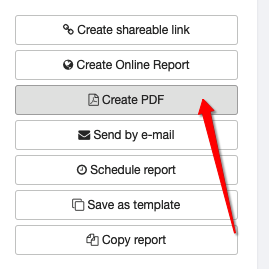
- Once the report is generated, click "Show"
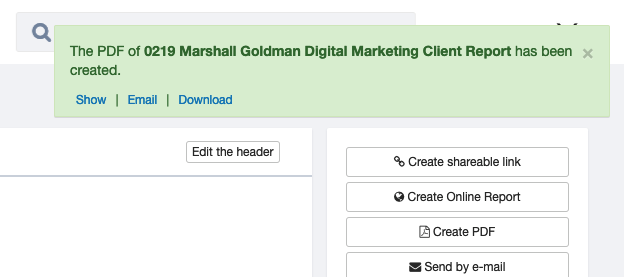
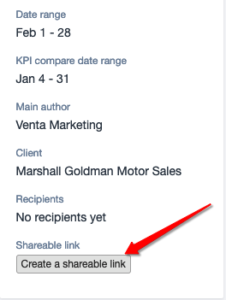
13. Then click "Create a shareable link" to generate a shareable link for your client