Usage Guidelines
- This will be used to set up proper tracking for clients in Google Analytics
- This will be used to test tracking is working properly in Google Analytics
- This will teach us what goals are approved and not approved
- This will teach us how to properly name goals
- Tracking on the client’s goals should be implemented on every client
Approved Goals
- Lead Generated via Form Submission
- Lead Generated via Phone Call
- Lead Generated via Email button
- Purchase on site
- Guide / Asset / Ebook Downloaded
- Newsletter Signup
- Free Trial Signup
Non-Approved Goals
- These goals should be stopped immediately any time you see it on any current client’s analytics account:
- Old goals
- Duplicates
- No longer used
- etc
- Contact Page Visits
- Time Spent On Site
- Visits to any page other than a thank you style page
- Clicking a button that does not result in a lead or sale
- Receiving traffic
- Job application submitted (unless that is the scope of our responsibilities on the campaign)
- + any others that do not align with the approved goals. Past marketing companies get clever with the things they report on to “show value”. Do not hesitate to ask about pausing goals if you are unsure if they address the clients campaign goals.
- Old goals
- Why are these not approved?
- The most important piece of information we can provide a client about our value is the leads/sales/revenue they are generating from our services. Having goals within analytics that do not reflect our value leads way to inaccurate reporting, confused clients, and misunderstandings on what we are generating for their business.
- 99% of the business owners we’ve worked with care little outside of how much did they make vs how much did they spend vs what is my return. If those numbers accomplish their goals and our campaigns were excellently implemented and managed, then they will be overly satisfied with us.
- The non-approved goals can all be found within Google Analytics without setting them as goals.
- If you see someone on our team implementing these goals, please do the following:
- Explain to them why we do not track these as goals and show them this guide on how to do it properly
- Demonstrate how to properly set up a goal by walking step-by-step through this guide
- Guide them to set up a goal on their own following this resource. Coach and intervene as necessary
- Enable them to set up more goals on their own without any intervention, but request a final check of the next few
Naming Guidelines
- [Goal] – [Goal Type] – [Location of Goal]
- Examples
- Lead – Form Submission – Website
- Lead – Phone Call – Website
- Download – Form Submission – 10 Tips Guide
- Lead – Form Submission – Landing Page
- Signup – Form Submission – Newsletter
- Signup – Form Submission – Free Trial (This could also be categorized as a lead)
- Lead – Phone Call – PPC Ads
- Lead – Form Submission – Demo Request
- Examples
How to Set up Goals
- Access clients Google Analytics account
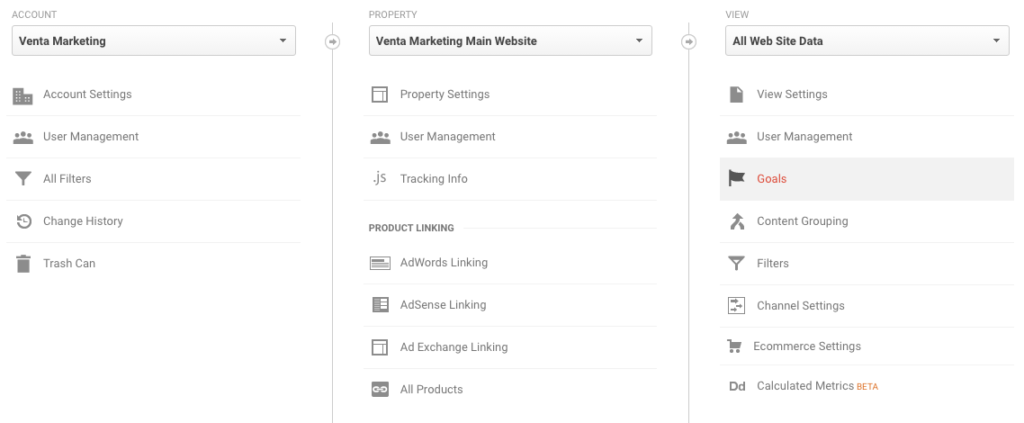
- Click “Admin” on the left tab > Click “Goals” under the view column > Click “+ New Goal” button
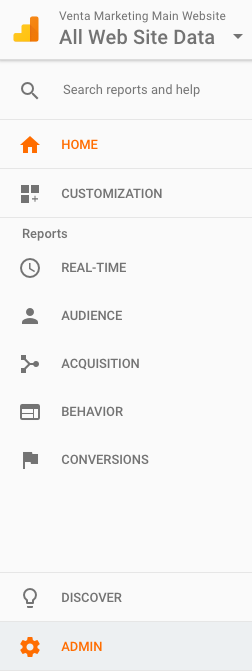 >
> 
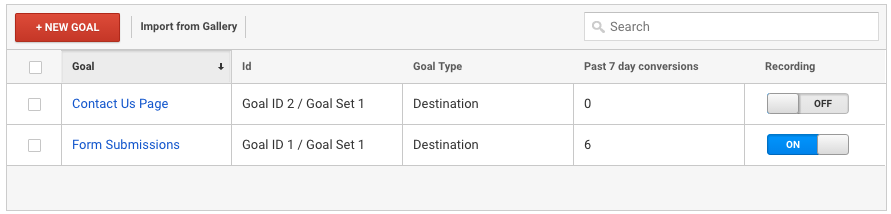
- Setting up a Lead Generation Goal when the client has a Thank You page after a form submission (applies to most scenarios)
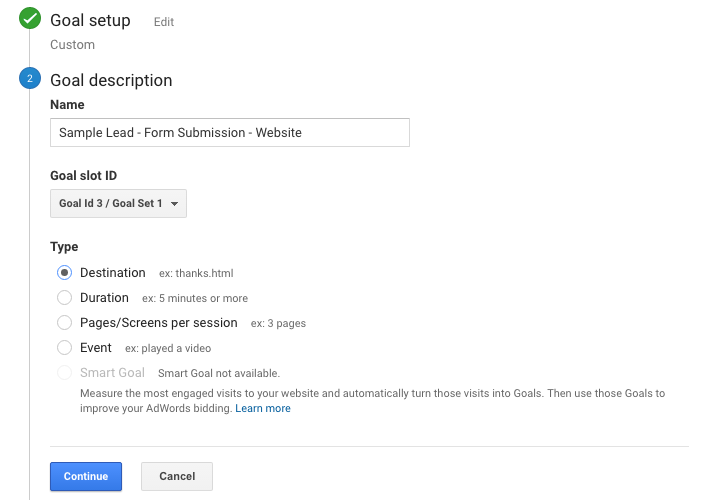
- After clicking “+ New Goal”, select the “Custom” button at the bottom
- Enter the Goal Description according to the naming guidelines listed above
- Goal slot ID can remain as whatever it is currently on
- Select “Destination” button from type options and click “Continue”
- Choose “Equals to” for Destination.
- Open a new tab
- Access the client’s WordPress backend (this should apply to most scenarios)
- Click “Forms” on left hand side > Hover over the form you are setting up a goal for > Hover over “Settings” > Click “Confirmations”
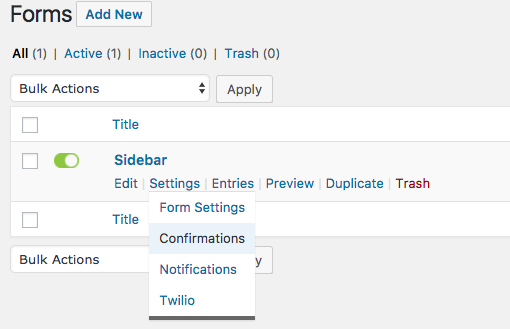
- Click the link underneath “Content” column that should say something like “Thank You”
- Once the new page loads, copy the URL after the client’s domain
- Don’t copy: www.ventamarketing.com/thank-you.html
- Do copy: /thank-you.html
- Don’t close that tab because you will need it again when you verify that the goal is working properly
- Paste the piece you copied into box next to equals to
- Skip Value unless you know differently
- Skip Funnel unless you know differently
- Click “Save this Goal”
- Move to How to Verify Goals below. Every goal must be verified immediately after creating the goal. Troubleshoot the goal until it is verified to be working accurately. There is zero tolerance for goals being implemented incorrectly and left that way.
How to Verify Goals
- Follow the setup guide to create your approved goals for the client’s campaign
- Access the client’s Google Analytics dashboard
- Click “Real Time” on the left side tab
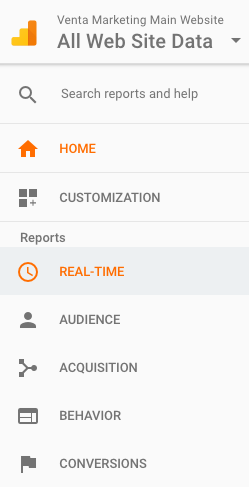
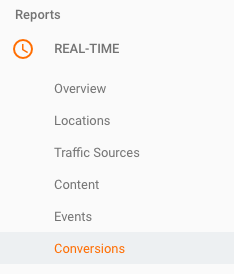
- Click “Conversions” at the bottom of the list
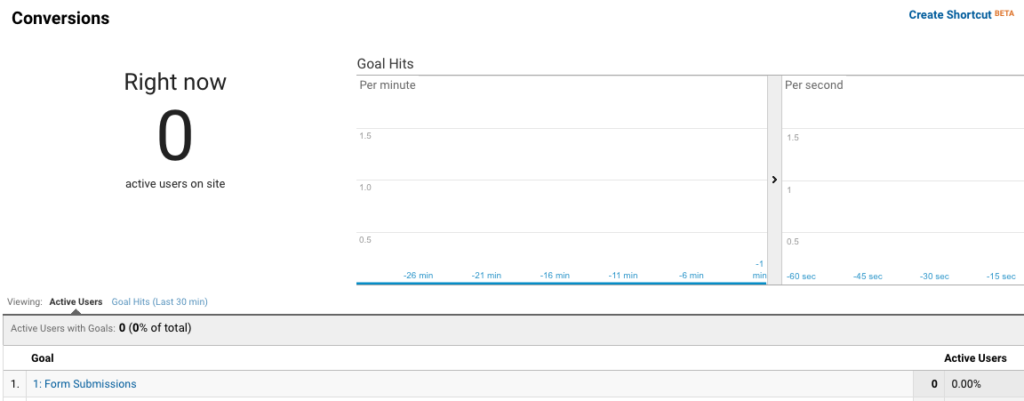
- Monitor the dashboard that displays the conversions actively occurring on the site
- Open a new tab
- Navigate to the page where the goal tracking was implemented (thank you page found in above steps) or perform the task associated with the goal
- If it requires filling out a form or anything that will immediately go to the client upon completion, include your name and test within the various fields so it is clear that they should not follow up with the lead. This should be done as minimal as possible.
- Monitor the conversions dashboard. If the goal tracking was set up correctly, then you should notice an uptick for the specific goal right when you perform the task for it.
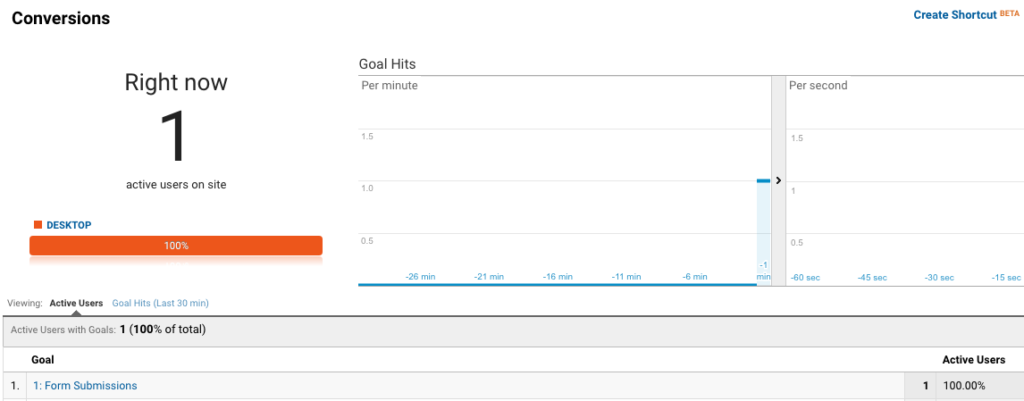
- Complete this across all goals implemented to ensure they are working properly