While setting up Yext correctly initially is important, there is additional value Venta Marketing offers its clients for local visibility management.
Management is to be performed once after the initial setup for every client with a local visibility campaign and again every 3 months after that.
A phone call discussing Yext management must be scheduled with the client or stakeholder at least 2 weeks prior to the teamwork task’s due date to ensure all questions are answered without additional delay.
*Looking for some Google My Business Post suggestions? Click here
Optimal Category and Core Information Check
- Primary Category Check
- Search through Yext categories to ensure we are still using the most relevant Google My Business category.
- Google regularly changes these categories, removing and adding them all the time.
- Search through Yext categories to ensure we are still using the most relevant Google My Business category.
- Sub-category check
- Repeat the above for sub-categories
- Core Information Check
- Confirm all "Core Information" fields in Yext
- Business Name
- Address
- Main Phone Number
- Regular Business Hours
- Confirm all "Core Information" fields in Yext
Description Update
- Update the description of the business slightly.
-
- Google and other listing sites regularly check listings for freshness and rank them higher for activity.
-
Holiday Hour Check
- Enter in any upcoming Holiday Hours for the business
-
- Holidays to Consider:
-
New Year's Day- January 1 - Tuesday
-
Martin Luther King, Jr. Day - January 21 -Monday
-
George Washington’s Birthday - February 18 - Monday
-
Memorial Day - May 27 - Monday
-
Independence Day - July 4 - Thursday
-
Labor Day - September 2 - Monday
-
Columbus Day - October 14 - Monday
-
Veterans Day - November 11 - Monday
-
Thanksgiving Day - November 28 - Thursday
-
Christmas Day - December 25 - Wednesday
-
- Holidays to Consider:
Creating and Scheduling Quarterly Posts
Every client with a local visibility campaign will receive at least 1 post a month
- The account services rep will create and add these posts to Yext using their own creativity and knowledge of the business's services and specials.
- *Looking for some Google My Business Post suggestions? Click here
- Asking your client what specials or events they are attending the next 3 months is a great way to add value to the campaign

Starting the Post and Setting the Business
- Go to: Listings>Post
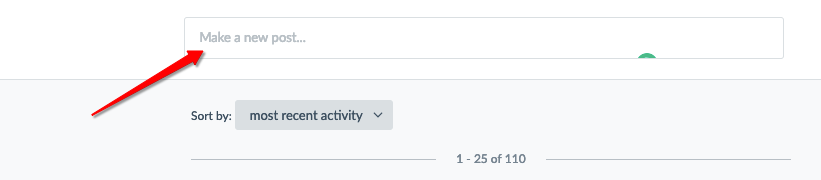
- Click in the field to "Make a New Post"
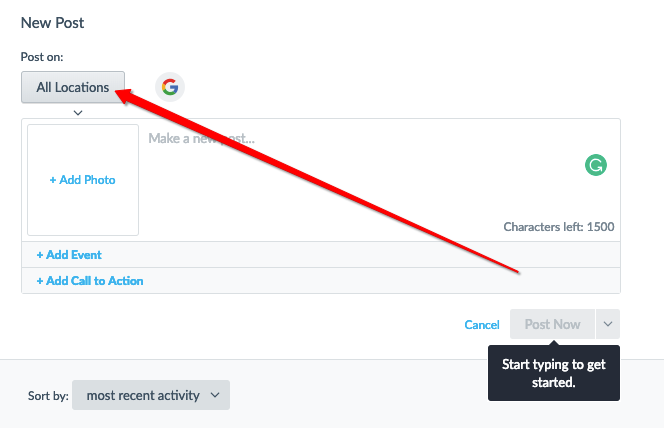
- Select "All Locations" and choose the business you are posting for from the list
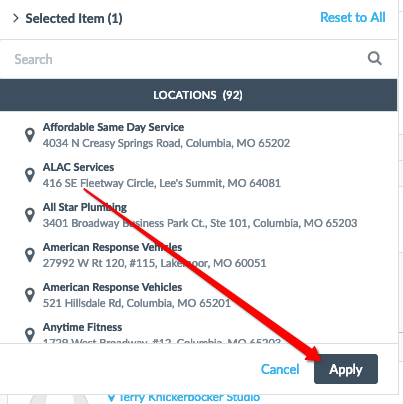
- Make sure to also click "Apply"
Creating Posts
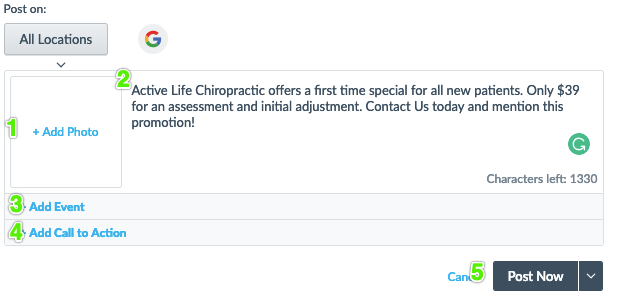
- Add Photo
- Add a relevant photo to the post for the content you are adding
- If you cannot create media, think of the following:
- Using stock photos
- Using media available by logging into the client's Wordpress
- Using Canva
- Using a Gif to capture more attention
- The photo must be perfectly square
- Description
- Add an interesting description
- Keep in mind individuals only see the first 100 characters of a google post before they have to click to read more so make your message hook an audience quickly
- There is no need to enter links in this section
- Add an interesting description
- Add Event
- We will talk more about adding events in another section
- Add Call to Action
- Every post should have a call to action
- Typically, you will want the call to action to lead to a lead form on the website or a page on the client's website that tells them more about the post
- To add a clickable "Call" call to action your custom URL should read as the example below
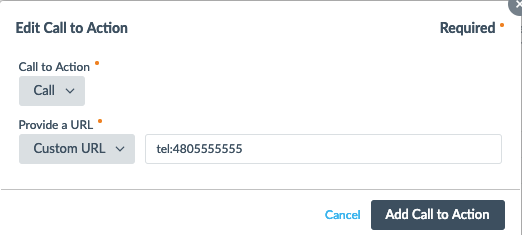
- Post Now / Schedule Post
- Click the down arrow to select 'Schedule Post' after you've done all of the above
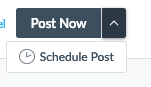
- Click the down arrow to select 'Schedule Post' after you've done all of the above
Scheduling Posts
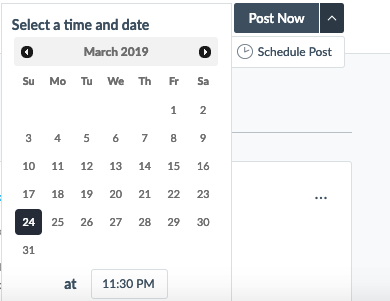
- Schedule your client's post at the beginning of every month, once a month. Your posts should cover the time until your next Yext management.
Creating and Scheduling Quarterly Events
Adding a client's events is an important way to add value to the local visibility campaign and to help rank the business. After collecting information during your quarterly call with the client, you will add ALL upcoming events the business contact mentions
Starting the Post and Setting the Business
- Go to: Listings>Post
- Click in the field to "Make a New Post"
- Select "All Locations" and choose the business you are posting for from the list
- Make sure to also click "Apply"
Adding Event Information
-
- Add Photo
- Add a relevant photo to the post for the content you are adding
- If you cannot create media, think of the following:
- Using stock photos
- Using media available by logging into the client's Wordpress
- Using Canva
- Using a Gif to capture more attention
- The photo must be perfectly square
- Description
- Add an interesting description
- Keep in mind individuals only see the first 100 characters of a google post before they have to click to read more so make your message hook an audience quickly
- There is no need to enter links in this section
- Add an interesting description
- Add Event
- Enter in the event name, start date/time and end date/time
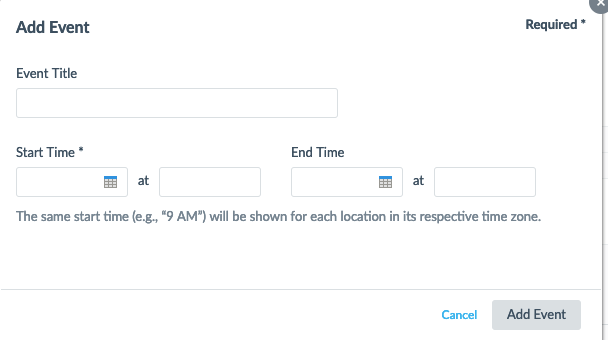
- Enter in the event name, start date/time and end date/time
- Add Call to Action
- Every event should have a call to action
- Typically, you will want the call to action to lead to a lead form on the website or a page on the client's website that tells them more about the event
- If there is a page to buy tickets or signup that is off the business's website this is okay as well
- To add a clickable "Call" call to action your custom URL should read as the example below
- Post Now / Schedule Post
- Click the down arrow to select 'Schedule Post' after you've done all of the above
- Click the down arrow to select 'Schedule Post' after you've done all of the above
- Add Photo
Scheduling an Event
- Schedule your client's event two weeks before it is scheduled to happen
- This will ensure that the event is added to Google My Business and a post is made hyping the event prior.