Usage Guidelines
- This will be used to gain WordPress access from any client utilizing WordPress as their CMS
- This should be requested within the first week of onboarding
How to Gain Access
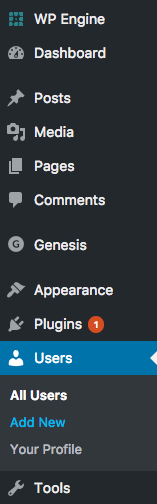
- Client needs to login to their wordpress website backend. This is often as clientsite.com/wp-admin
- Click “Users” and click “Add New” on the left-hand side navigation
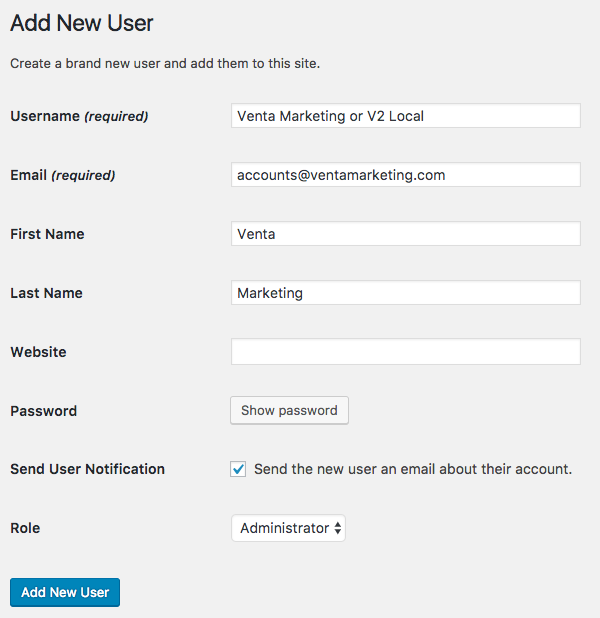
- Fill in the details to add Venta Marketing or V2 Local as a user to the site.
- Username: Venta Marketing or V2 Local
- Email: [email protected] or [email protected]
- First Name: Venta or V2
- Marketing or Local
- Ensure “Send User Notification” is checked so we receive an email
- Role: Ideal is “Administrator”. Administrator access ensures we always have the ability to complete the full-width of our responsibilities without relying on the client. No changes towards billing, fees, important info, etc will ever be changed without clients written approval beforehand.
- Check the appropriate email for the notification of site access and complete the steps for site access
- Create a new password relative to the password structure for the company
- Add the info into TeamPassword
- Confirm with the client that everything is set up as necessary
Instructions to email client
- Login to your WordPress website backend
- Click “Users” on the left-hand tab
- Click “Add New” on the left hand tab
- Add the following information for us to become a new user:
- Username: [Venta Marketing or V2Local]
- Email: [[email protected] or [email protected]]
- First Name: [Venta or V2]
- Last Name: [Marketing or Local]
- Website: Can be left blank
- Role: Administrator
- This is ideal for us so that we can always perform the full-width of our responsibilities without putting additional tasks on your team. We will never make any changes to billing or other important info without prior written approval from you.
- Send User Notification: Please ensure this is checked so we receive an email
- Click “Add”
- Please let us know when you have completed that
- We will complete the process from our end and confirm with you that it is all set up properly!