Usage Guidelines
- These are the proper instructions to prospect for new link opportunities for link building campaigns
- Specifically this procedure for those who have assets
- This procedure should be used for any clients running link building campaigns
Creating a New Link Prospect List
The following are instructions for creating and editing a link prospecting list using BuzzStream’s prospecting profiles. Please refer to the links below for other link building related pages.
(Links to other pertinent sections)
Link prospecting can be broken into two key parts, Low Hanging Fruit Prospecting and Link Opportunity Prospecting. Both are outlined below.
Low Hanging Fruit & Search Prospecting
This type of prospecting searches the web for specific terms associated with your company and website. Often these are company names, unique industry terms, or the names of specific individuals associated with the website or organization. In essence, you will be searching for mentions of your website, company, or leadership.
After logging into BuzzStream, go to your projects and select your client OR add a new project/client.
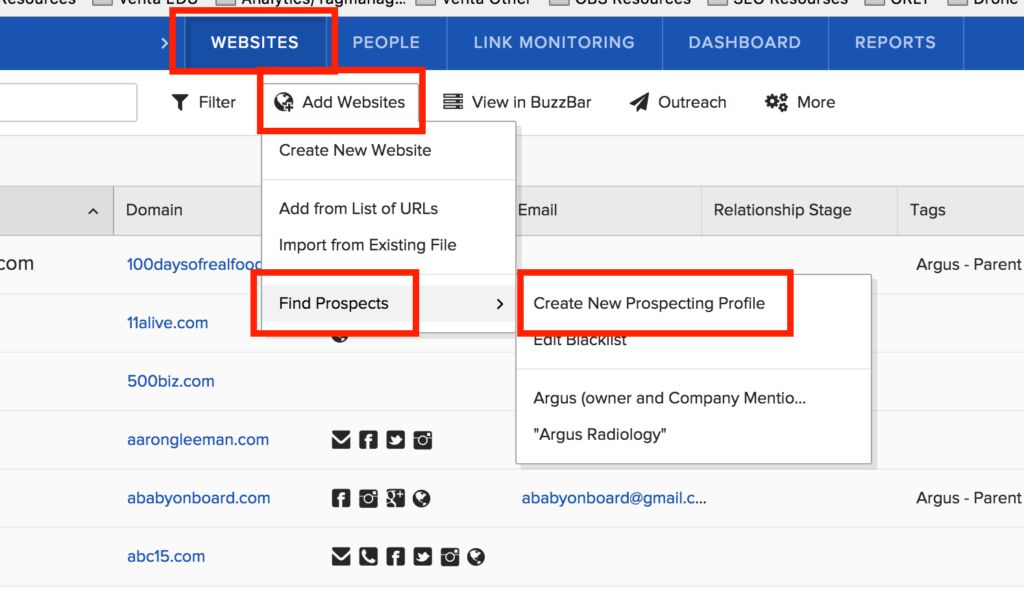
- Click on the “Websites” tab next to “People” at the top of the page
- Click “Add Websites” in the sub-tab section
- In the pop-up menu, hover over “Find Prospects”
- Click “Create New Prospecting Profile”
Creating a Prospecting Profile
- Name your profile
- [client] – Company/Leadership mentions
- note: this method is also used for link campaings beyond just mentions
- [client] – Company/Leadership mentions
- Select a country for search
- Input your searches
- note: each line is a separate Google search up to 20 lines and each line will yield up to 100 results (the first 100 unique sites/links)
Search Text Structure for Mentions or New Link Opportunities
- Consider including searches for
- Company name
- Company acronym
- Leadership and employee names
- Company phone numbers
- Company emails
- Company Addresses
- Note: if using this function for new link opportunity searches, use search terms and strings that focus the results on your key demographics or website types
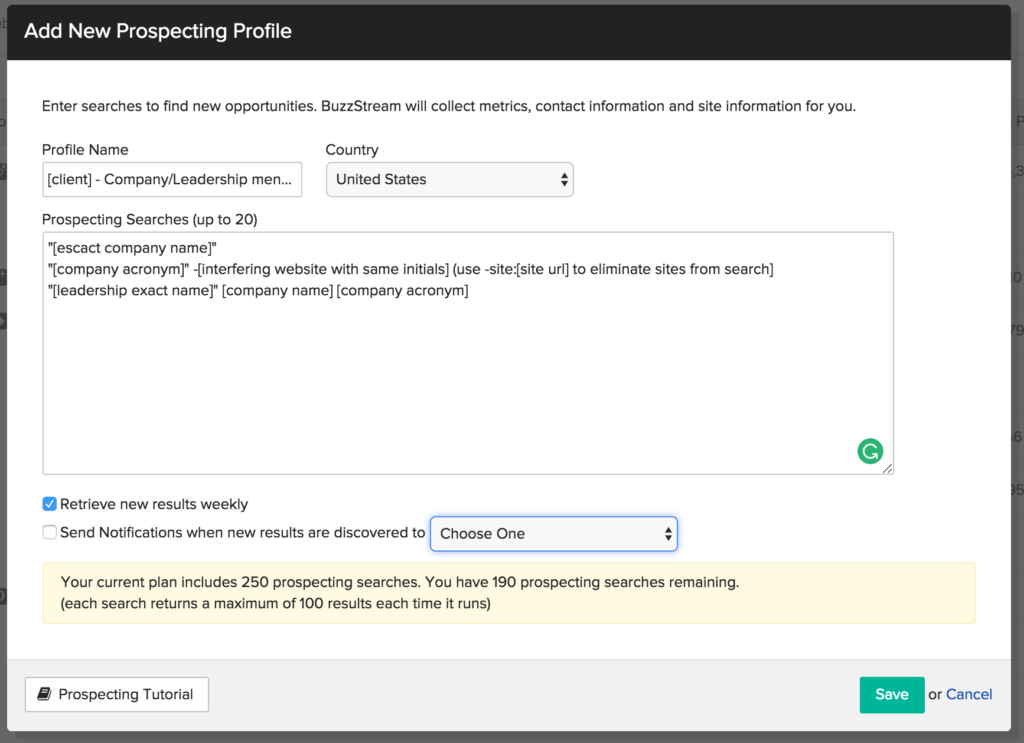
- Using advanced search techniques are very helpful in weeding out unwanted results
- Use ” ” to do a specific search for a word or string of words. Google will only return results that match that specific word or word string
- Use -site:[site url] to remove unwanted web domains from results
- Combine these for advanced searches i.e. -site:www.orly.com “John Doe” Ozark Regional Land Trust ORLT
- Select “retrieve new results weekly”
- Click “Save”
You will be taken to a screen that is now filtered to this specific prospect list. You can always return to it by going to “add website > find prospects > your prospect list.”
After a time you can refresh the list and all results will be present. Results may take several minutes or more to generate.
Sorting, Flagging, & Refining Your Prospect List
Your results can either be accepted, rejected, ignored (do nothing), or blacklisted. Thumbed up results will go to your main websites list for your client. Thumbs down will be removed. Blacklisted website are reserved only for
- Review and add crawled contact information (if available)
- Accept, reject, ignore, or blacklist (thumbs up, thumbs down, do nothing, circle-strike)
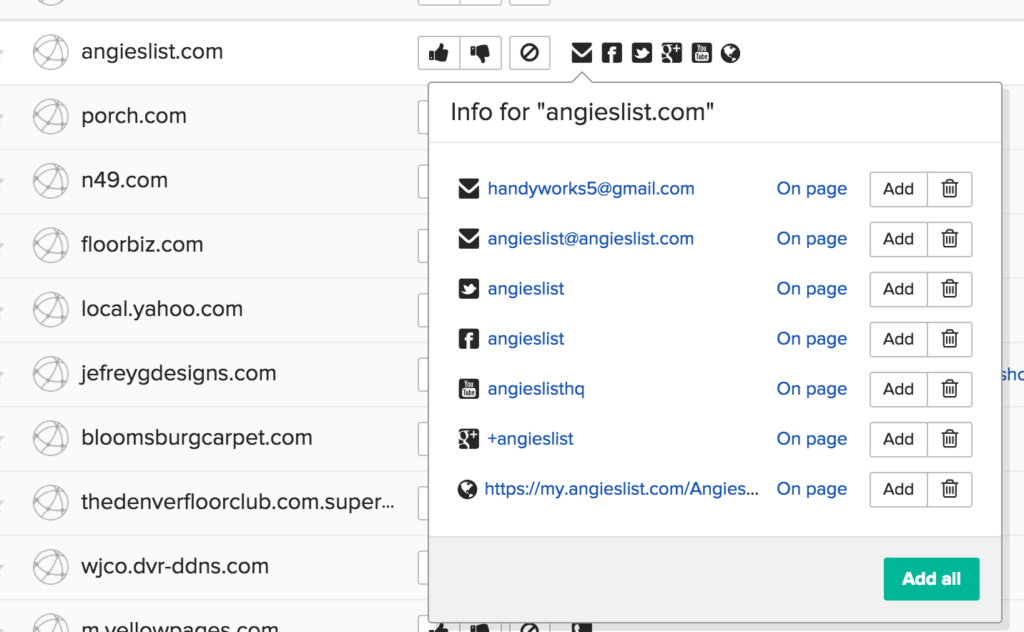
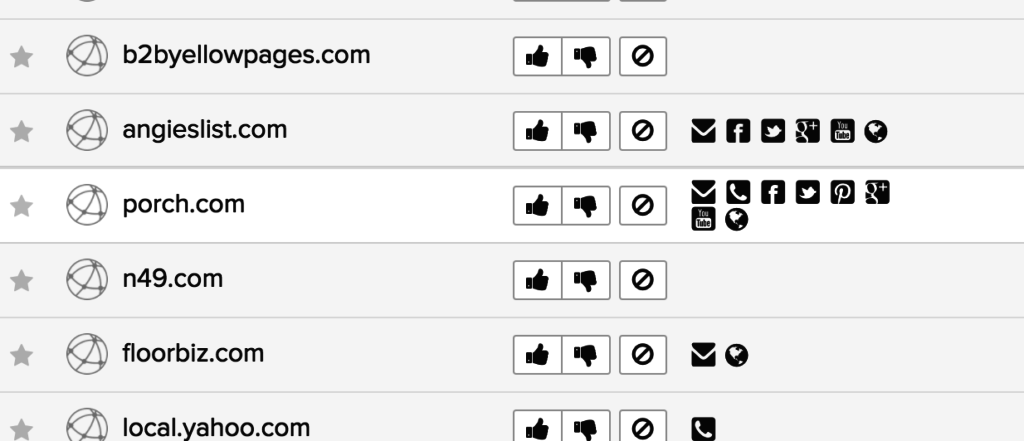
- You may now reach out and contact your approved websites and request links for sites that have already mention the website, company, or team members
Link Opportunity Prospecting
This type of prospecting involves searching for a specific group or type or websites. Typically, they are in a common demographic, share common interests, or both. These types of link opportunities are typically best utilized for link building campaigns where content (i.e. infographics, blogs, etc.) are offered in hopes that they will be used and a link will be given as credit to the work.
It is entirely possible to find these types of prospects through the process described in the Low Hanging Fruit section above simply by changing out the list keywords for relevant terms and eliminators for your search. Below is an alternative method.
After logging into BuzzStream, go to your projects and select your client OR add a new project/client.
- Download and install the Buzzstream Chrome extension to your browser
- Go to Google
- Enter your search terms to find your target group
- i.e. Denver Home Bloggers
- Activate your BuzzStream extension
- Browse through your results
- Validate a result by reading the title and meta descriptions OR going to the website to proof content
- If in Google, right click the site link you wish to add to your website list
- Select “Buzzmark this page”
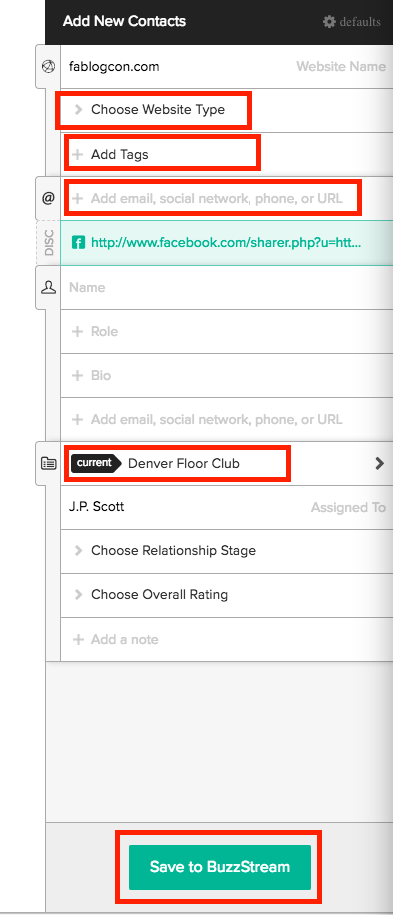
- Fill out information
- Website type
- Add tags (locations, website type, topics, etc.)
- Approve contact info if found
- Add to current project
- note: by default, the project/client that is currently open on BuzzStream will be auto-filled
- Click “Save to BuzzStream”
- Repeat until you have finished.
This method is highly effective but has it’s shortcomings. It is difficult to know which site you have already visited and marked, especially if you are adding to an existing list of similar prospects based on the same search terms. Because of this, mastering the use of the Prospecting Profiles is key.