Purpose: Since we are using Slack as a client communication tool, we need to have a unified look and feel for our customers.
Initial Setup
- Name – your name should be First Last
- Profile:
- Please upload a recent headshot to your profile
- Include job title (this should be your actual job title)
Connect your slack with Google Calendar
This will automatically put a meeting status or out of office based on what is on your calendar.
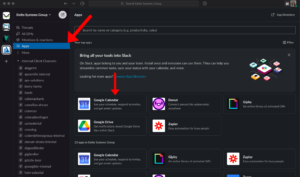
- At the top of your Slack, there is the option to add apps, click on this and select Google Calendar
Shared Slack Channels
- Naming: client name-shared
- When using shared Slack channels with clients all Slacks need to be addressed in a timely manner.
- Avoid direct messages.
- If a client direct messages you redirect it into the shared channel so that the whole team has visibility to the conversation.
- How to create a shared channel
- Hover over channels and click the +
- Choose create a channel
- Name your channel
- Add people
- Add our team members by typing in their names
- Add clients by typing in their email address
- Select add user as a guest
Internal Client Channels
- Naming: client name-internal
- Anytime you are discussing a client it should go in the internal channel instead of direct messages.