
Usage Guidelines
- These are the proper instructions to claim and unclaimed Google My Business listing
- We need this complete for any clients running a digital marketing campaign
Instructions for Claiming an Unclaimed Google My Business Listing
The following are instructions for claiming an unmanaged Google My Business listing. Please use the links below for more information and instructions on:
Gain access to an existing claimed Google My Business listing
When to use: for businesses who have access to their claimed Google My Business listing
Creating a new Google My Business listing
When to use: for businesses with no existing Google My Business listing (claimed or unclaimed)
Recovering/Requesting access to a claimed Google My Business Listing
When to use: for businesses that have lost access to their claimed Google My Business listing
Claiming Business Listing Option 1 (Claim via Maps)
Login to Google with a client provided Google account they wish to use for the listing (note: if not such account is available, we will make one on behalf of the client and give them login credentials)
- Go to https://www.google.com/maps
- Search for the business you want to claim
- note: include exact business name, city/state, and address if possible
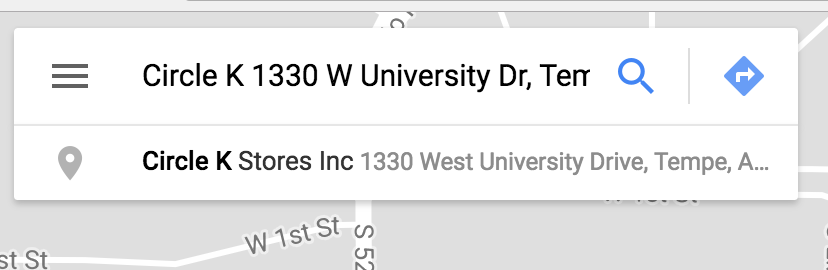
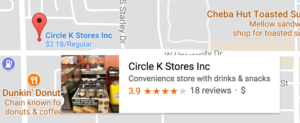
- Click on the listing you wish to claim on the map, this will open up the business info on the left
- About midway down the listing information will be the option “claim this business,” click it
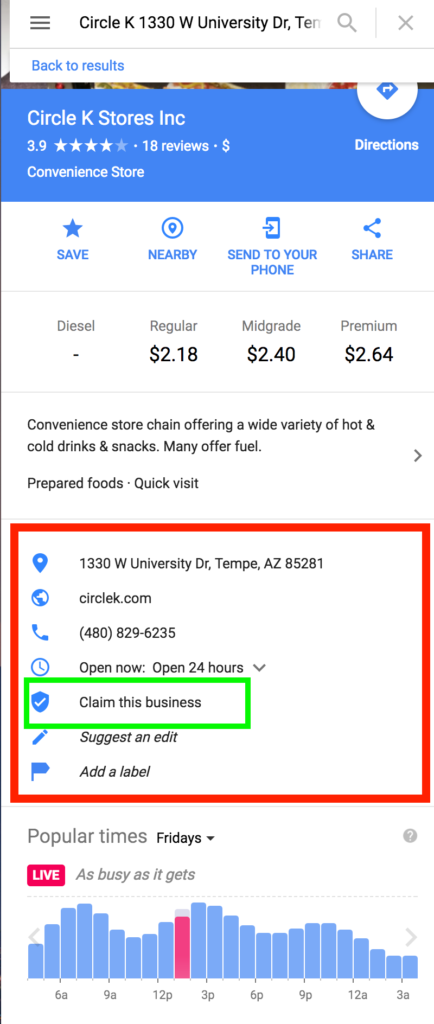
continue to verification, listing editing, and access sharing
Claiming Business Listing Option 2 (via Google My Business)
Login to Google with a client provided Google account they wish to use for the listing (note: if not such account is available, we will make one on behalf of the client and give them login credentials)
- Go to https://business.google.com
- note: you may get different opening screens depending on the account
- Click “start now” OR click on the blue circle and + in the bottom right
- Select “add a location” or “add a single location”
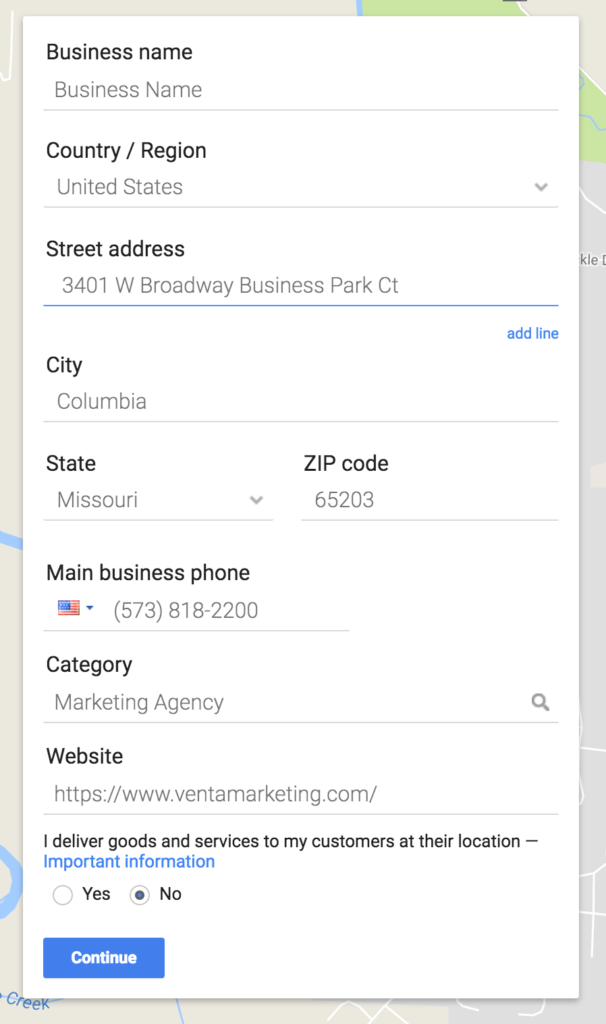
- Fill in all the business’s information (be 100% accurate)
- note: if you see your business and location auto-populate in the “business name” field, check that it is the correct listing and click on it and Google will auto-populate the rest of the form fields
- Fill in all the business’s information (be 100% accurate)
- Click “continue”
Verification, Editing, & Access Sharing
- You may be asked to accept another terms of service, accept
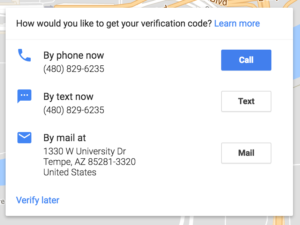
- An option for either a “by mail” or “by phone” or “by text” listing verification will appear
- “by mail” takes 1-2 weeks typically (Google sends a physical postcard with a verification number on it)
- “by phone” and “by text” is nearly immediate (Google calls or texts the business and speaks with someone at the office to confirm business name, location, and other info)
- Select one of the two options or click “verify later”
- note: the listing will not be live on Google until it is verified (instructions on Google My Business verification)
Edit Add Additional Listing Information
- Click through any welcome dialogue box
- Click “info” on the left hand menu
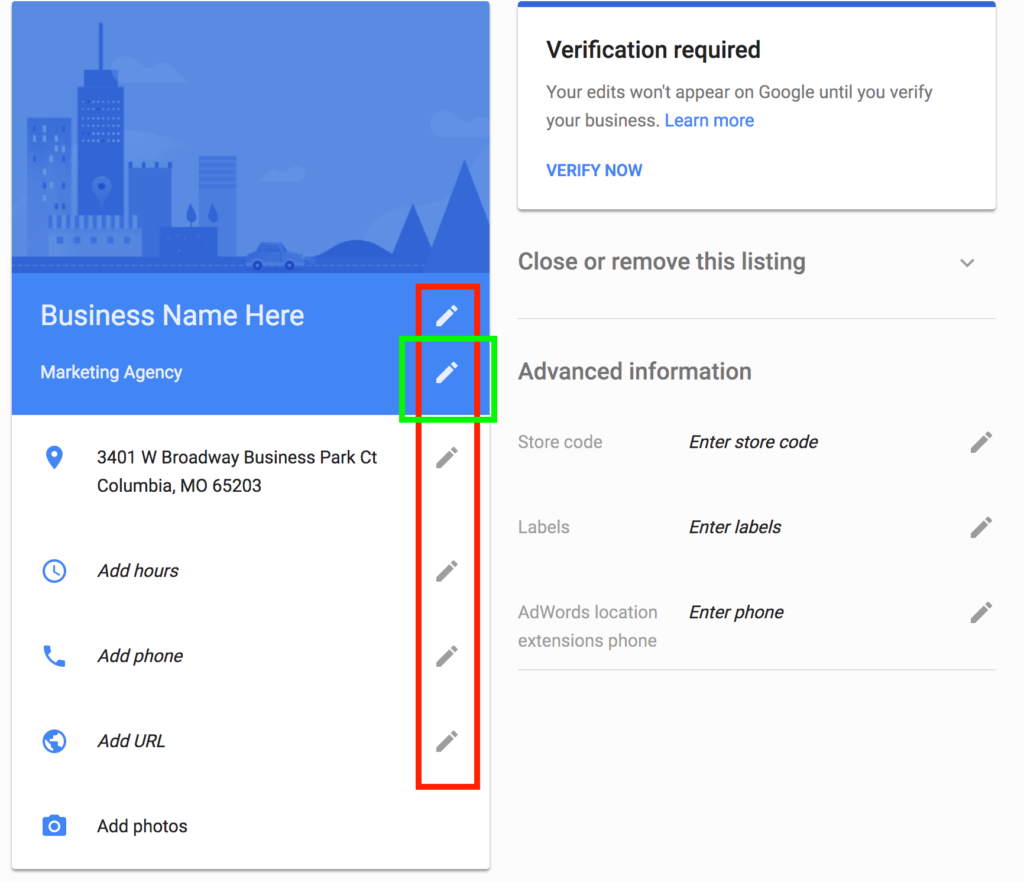
- Add/update sub-categories as needed to the listing by clicking the edit icon in the bottom right of the blue box
- In the same manner, add/update hours, phone numbers, website urls, and photos as needed
- note: best practice is to have a cover photo, profile photo and at least 3 other photos for listings
Share Listing Access
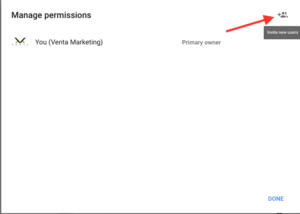
- Click “Users” on the left-hand tab
- In the pop-up window, click the person icon in the top right
- In the add new users pop-up, add [[email protected] and/or [email protected]]
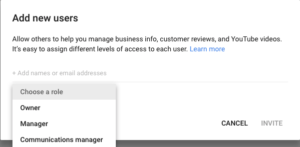
- We need an owner role
- Click “Invite”
- Go to email of newly invited account
- Accept the invitation to own the Google My Business property