
Usage Guidelines
- These are the proper instructions to recover or request access to an existing Google My Business page that the client has either lost access to or has forgotten the email account under which is it held
- We need this complete for any clients running a digital marketing campaign
Recovering or Requesting Access to a Claimed Google My Business Listing
The following are instructions for recovering or requesting access to a claimed Google My Business listing. Please use the links below for more information and instructions on:
Creating a new Google My Business listing
When to use: for businesses with no existing Google My Business listing (claimed or unclaimed)
Gain access to an existing claimed Google My Business listing
When to use: for businesses who have access to their claimed Google My Business listing
Claiming an unclaimed Google My Business listing
When to use: for businesses who have an unclaimed Google My Bussiness listing on Google Maps
Login to Google with a client provided Google account they wish to use for the listing (note: if not such account is available, we will make one on behalf of the client and give them login credentials | you may also use [email protected] if needed)
Get a Clue as to What Google Account the Listing is Held Under
- Go to https://business.google.com
- note: you may get different opening screens depending on the account
- (accept the terms and conditions if asked)
- Click “start now” OR click on the blue circle and + in the bottom right
- Select “add a location” or “add a single location”
- Fill in all the business’s information (be 100% accurate)
- note: if you see your business and location auto-populate in the “business name” field, check that it is the correct listing and click on it and Google will auto-populate the rest of the form fields
- Fill in all the business’s information (be 100% accurate)
- Click “continue”
- A dialogue box will pop up saying that someone else has the listing but there will be a small snippet of the email used to claim the listing
- note: this snippet of email may be enough to remind a client which email is used for the listing
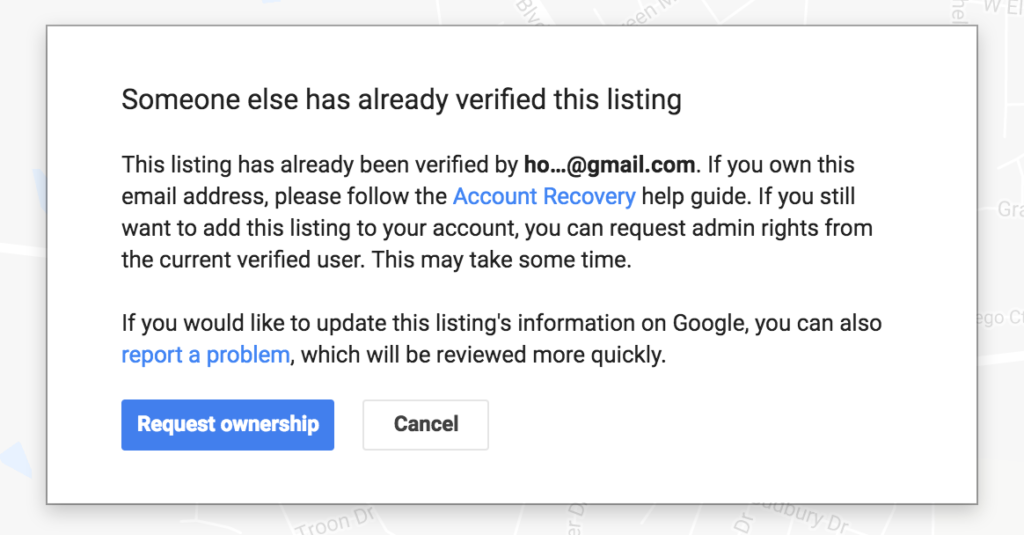
- Make note of the email snippet with a screenshot to send to the client
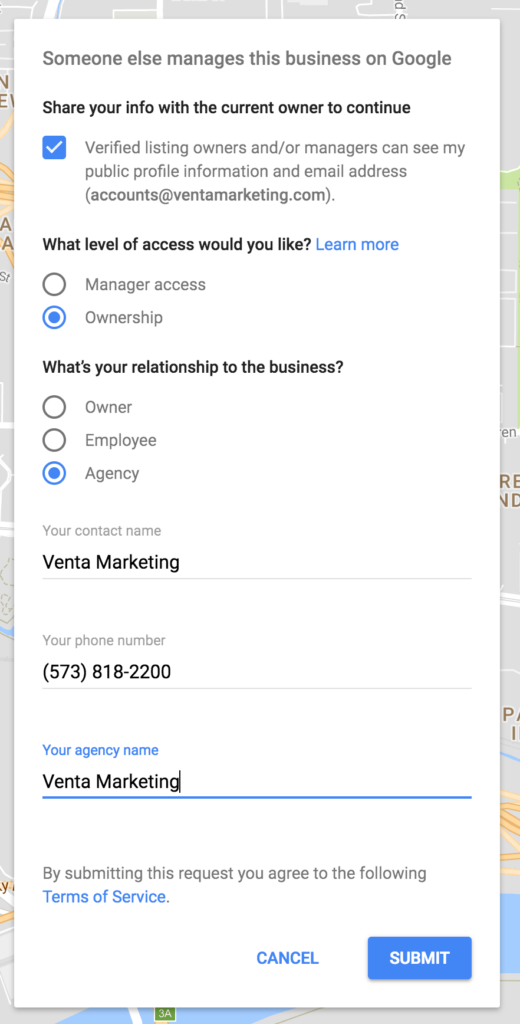
- Click “request ownership”
- Fill out the form as shown in the image below and submit
Call Google for Direct Assistance
- Call Google at: 1-855-607-0430
- Choose “My Business” help option
- Use Venta’s ID for verification and access to service
- 468-361-6655
- Discuss the situation and options with the Google tech.
If access cannot be gained or granted on the call, then Google will send a claim notice to the email used for the account. After 8 days, if there is no response from that email, then you will be able to claim the listing with another Google account
Other Options
Though at the time of this writing the option to receive a call from Google was not available on the Google My Business page, speaking to a rep at Google is often the best if not the only way to recover a listing. You can do this by:
- Log into [email protected]
- Go to https://business.google.com/manage/#/list
- Click on “manage listing” for Venta Marketing’s business listing
- On the left tab click on the “support” option and follow the prompts to receive a phone call from Google
- note: Another useful resourse that may still work to get a call back from Google
- https://support.google.com/business/contactflow?rd=4&visit_id=1-636356660264096203-1931206361
- Click “Ownership or access to my business”
- Click “someone else owns or verified my service area business”
- note: does not matter if business is service area or not
- Select from available contact options
- note: yellow means they are not available
- https://support.google.com/business/contactflow?rd=4&visit_id=1-636356660264096203-1931206361
- note: Google has changed their support structure. Use this helpful guide to find the “call me back” feature of Google My Business.
- note: Another useful resourse that may still work to get a call back from Google