Usage Guidelines
- This will be used to gain access to any clients Google Tag Manager (GTM) account
- During onboarding, Google Tag Manager will be set up for any client that does not currently have it
Instructions for Access
- Client needs to navigate to their Google Tag Manager account
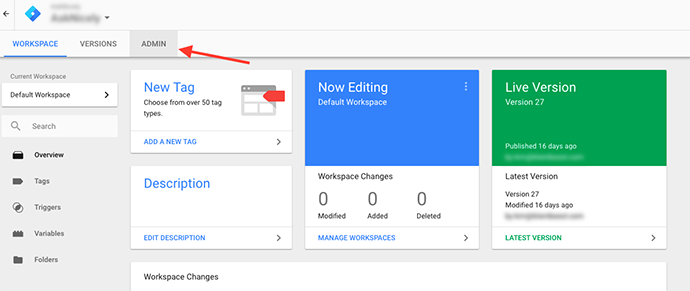
- Click on “Admin” in the top bar
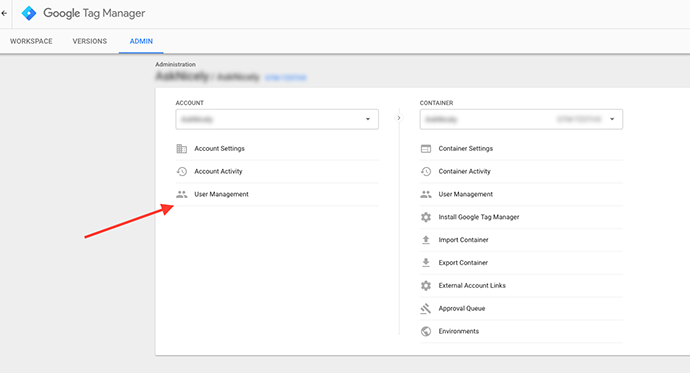
- Click on “User Management”
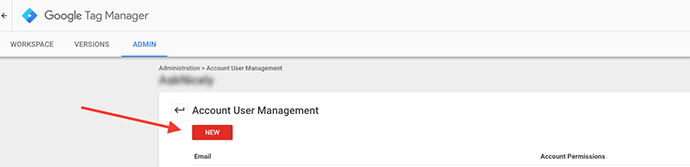
- Click on red “New” button
- In the Email section, add [[email protected] or [email protected]]
- Click on “Account Permissions” and select “User”
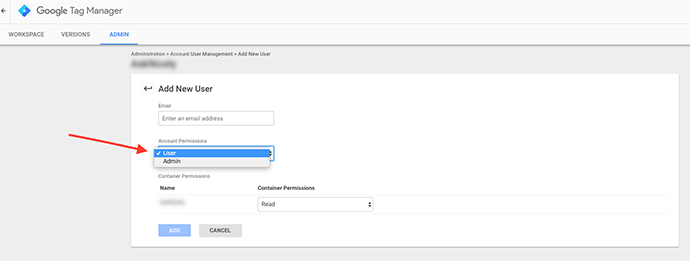
- Click on “Container Permissions” and ideally select “Publish” permissions
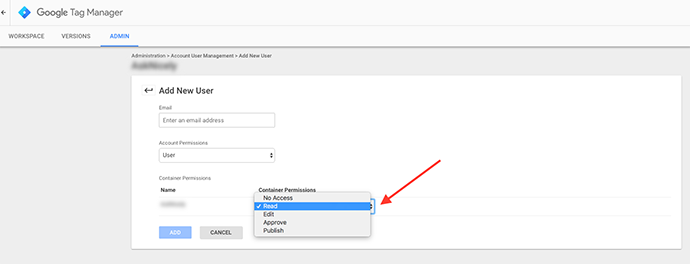
- Click “Add” button
- Confirm with the client once we have gained proper access
Instructions to email to client:
- Go to tagmanager.google.com
- Ensure it is your website in the top left or select your website from the list
- Click “Admin” in the top tab
- Click “User Management” under Account
- Click on red “New” button
- In the Email section, add [[email protected] or [email protected]]
- Click on “Account Permissions” and select “User”
- Click on “Container Permissions”
- It is ideal to provide us with “Publish” permissions
- Click “Add” button
- Let us know when you complete this part and we will confirm with you that it is working properly!