Usage Guidelines
- These are the proper instructions to receive Facebook access from clients.
- We need this complete for any clients running Facebook ads or organic Facebook postings.
Facebook Page
- Find the clients Facebook page
- Confirm it with the client if you are unsure if it’s the correct page
- Remember the page name or record it
- Login to Business.Facebook.com
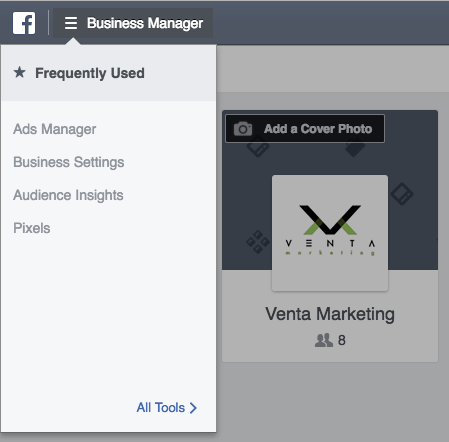
- Click on either Venta Marketing or V2Local, depending on which is serving the client
- Click the hamburger in the top left and click “Business Settings”
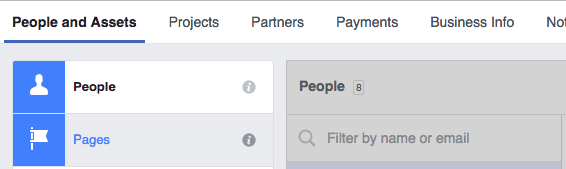
- Click “Pages” tab on the left column
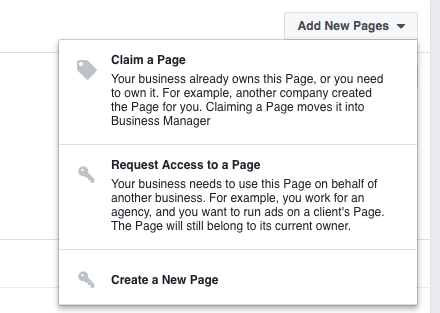
- Click “Add New Pages” dropdown on right side and select “Request Access to a Page”
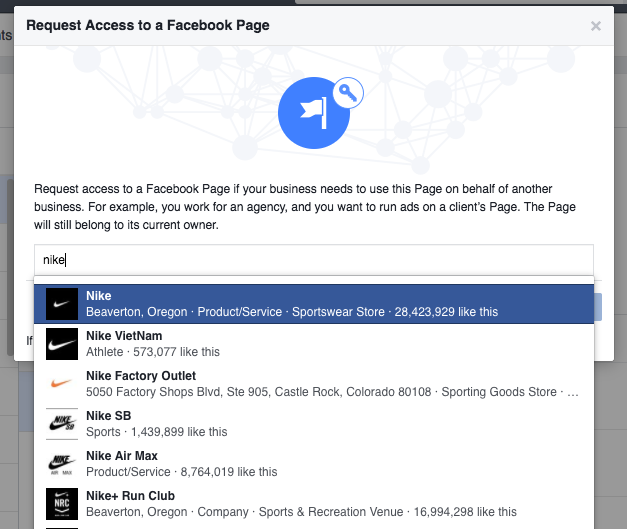
- Within the pop up window, enter the client’s Facebook page name or URL from steps 1 & 2, select the proper one, and click “Request Access”
- The client should then receive a notification and/or email that we are trying to gain access to their page
- The client needs to navigate to their Facebook page and click “Go to Business Manager to manage this page”
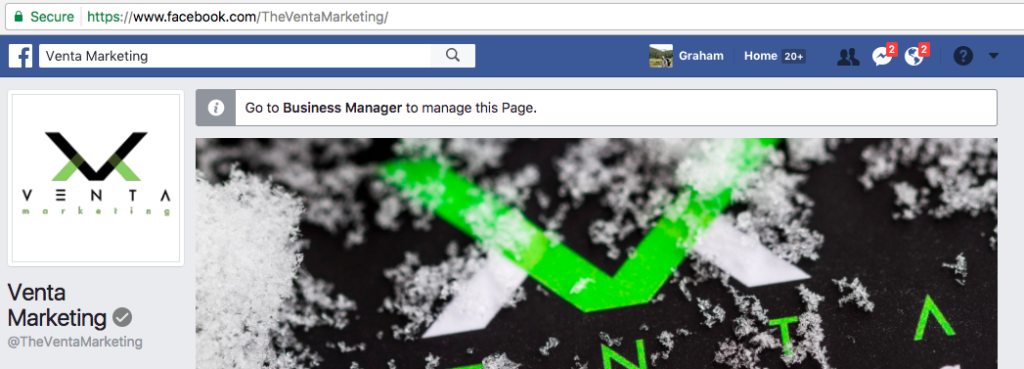
- Client should click “Settings” in the top right and then select “Page Roles” from the left column
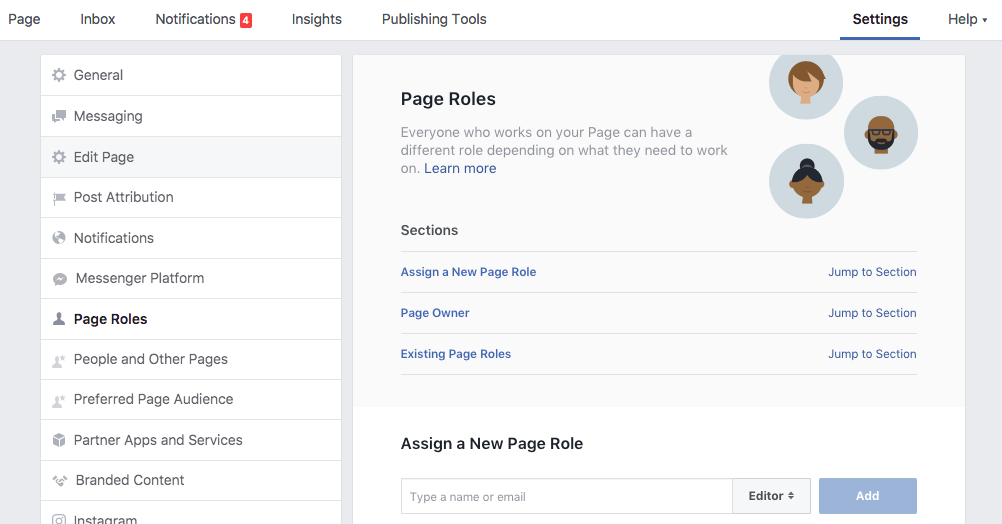
- The client will see a request from Venta Marketing or V2 Local
- They should accept the request
- “Admin” permissions are ideal but advertiser permissions will work too
- Once the client says they’ve accepted, log back into Business.Facebook.com to ensure that the client now displays within our “Pages” section
- Confirm with client that this was completed properly
Instructions to email to client:
- We will request access to manage your Facebook Business page
- Once you receive a notification, email, or confirmation that we requested access, go to your Facebook Business page
- Click “Go to Business Manager to manage this page”
- Click “Settings” in the top right
- Select “Page Roles” from the left column
- Accept the request from us to manage the page
- Admin permissions are ideal but Advertiser access is sufficient as well
- We will confirm with you that this is complete