
Usage Guidelines
- These are the proper instructions to receive Google My Business access from clients
- We need this complete for any clients running a digital marketing campaign
Instructions for Access
The following are instructions for gaining access to a claimed and managed Google My Business listing. Please use the links below for more information and instructions on:
Creating a new Google My Business listing
When to use: for businesses with no existing Google My Business listing (claimed or unclaimed)
Claiming an unclaimed Google My Business listing
When to use: for businesses who have an unclaimed Google My Business listing on Google Maps
Recovering/Requesting access to a claimed Google My Business Listing
When to use: for businesses that have lost access to their claimed Google My Business listing
Client needs to login to their Google account and navigate to https://business.google.com
- Click the 3 bar menu in the top left and click all locations
- Click “manage location” on the locations box. If they have multiple locations they will need to do this for each location.
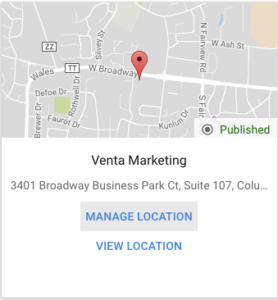
- Click “Users” on the left-hand tab
- In the pop-up window, click the person icon in the top right
-
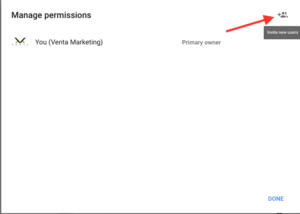
- In the add new users pop-up, add [[email protected] and/or [email protected]]
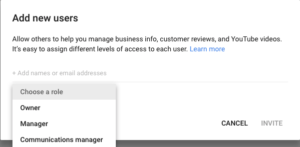
- We need an owner role
- Click “Invite”
- Go to email of newly invited account
- Accept the invitation to own the Google My Business property
Instructions to email to client:
- Login to business.google.com with the email that you originally verified your Google business page with
- Click the 3 bar menu in the top left
- Click All Locations
- Find your business location on that page. If you have multiple locations then this will need to be repeated across any that Venta is managing
- Click “manage location” on the locations box
- Click “Users” on the left-hand tab
- In the pop-up window, click the person icon in the top right
- In the Add New Users pop up, add [[email protected] or [email protected]]
- Set the role as owner so that we can always make the necessary improvements for your campaign’s performance. This still keeps you as the owner as well
- Click Invite
- Let us know when you’ve completed it and we will confirm that it is set up properly!