After syncing Yext with a business’s ‘Google My Business’ (GMB) account, it is important to optimize the Yext Page.
Optimizing and setting up the Yext page properly from the get-go is important to give the business a better chance of ranking locally for their services.
In general, you want to fill in as much information as you can about a business and every field available to you. See below for instructions on how to properly set up a Yext account.
Setting Up Core Information
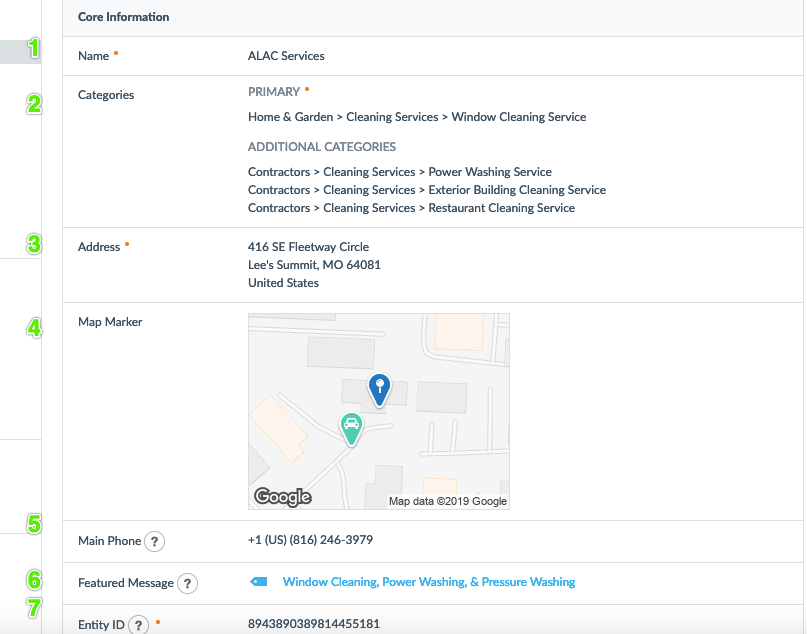
- Name
- The business's name should be what it calls itself on legal documents
- You should NOT add location information for businesses that have multiple locations (
- IE. McDonald's Phoenix - Wrong
- McDonald's - Right
- Categories
- Primary
- Choose a primary category that is most relevant to the business and their main offering
- If you are unsure, research competitor data.
- Sub-Categories
- Select as many sub-categories as are relevant for other services the business offers.
- There is no master list of categories, Google is always adding and removing these. Do your diligence to try and find the most relevant categories. This is one of the most important setup points.
- Primary
- Address
- Accurately set up a physical address that the business is located
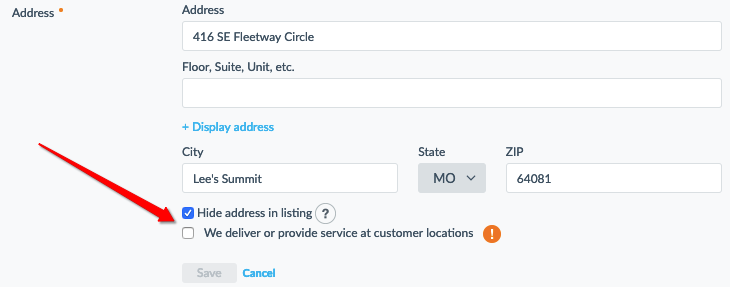
- Every business must have a physical location to be entered into Google My Business. If the business does not want to be seen you can 'Edit' the Address section and select the option to "Hide address in listing"
- Accurately set up a physical address that the business is located
-
-
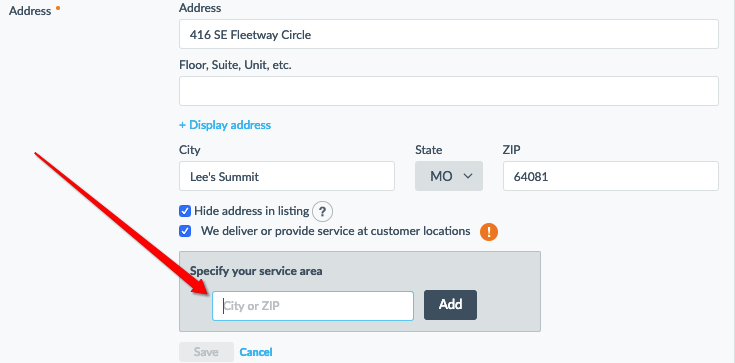
- If your business is a service area based business choose the option for "We deliver or provide service at customer locations" (seen above)
- Enter the Zip Code(s) that the business services. If you are unsure, you MUST request this information from the client. This information is pertinent that it is correct. Filling this out incorrectly could mean hundreds of potentially lost clients for the business.
-
4. Map Marker
-
- If you are aware of the client's physical location, you may try to alter this. Otherwise, you may disregard this section unless the client has specifically noted clients having difficulty finding their location.
- If the Business is a Venue or has heavy traffic, it could also be beneficial to properly set up the pickup/dropoff points for incoming vehicles.
5. Main Phone
-
- Use the business's main line for contact
- It is extremely important that you use a local phone number for the business if possible
6. Featured Message
-
- View this as a business's call-to-action
- Attempt to use enticing CTA's to improve click-thru such as:
- Get a Free Window Washing Quote Today
- Student Apartments for Under $500
- $30 First Time Chiropractic Consultation
- Be sure to add a URL to a contact form or other conversion point on the website
7. Entity ID
-
- The internal reference number for Yext accounts. You may disregard this.
Setting Up Business Details
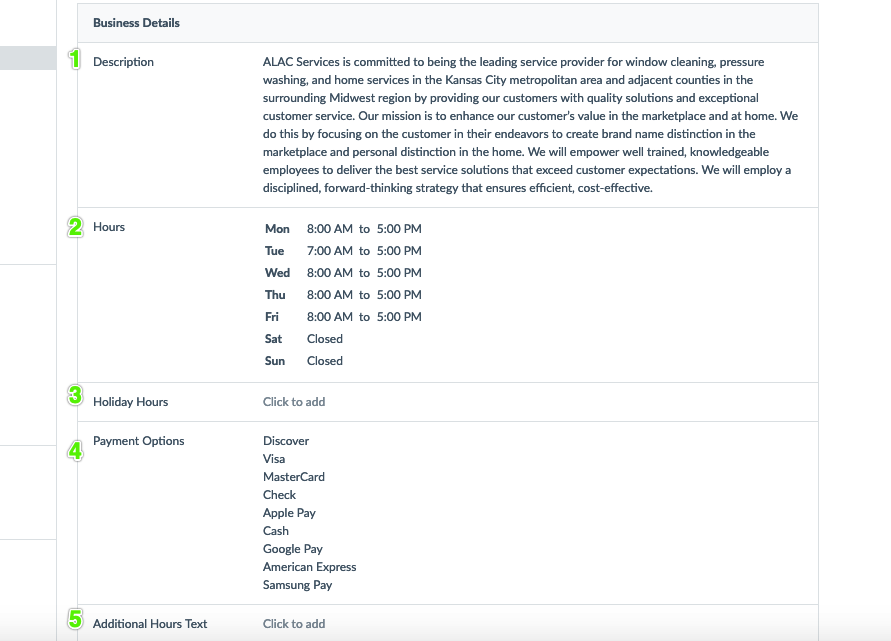
- Description
- The description should be greater than 150 words long
- Name all of the business's main services and benefits within the service
- If you are stumped, look at the business's website for inspiration. Try not to simply copy and paste information from the business's website. Google punishes entities for duplicate information.
- Hours
- Accurately enter the regular business hours for Monday-Sunday.
- Entering this incorrectly could cause missed sales opportunities and bad customer experience for the client.
- Holiday Hours
- Enter in all major holiday hours for the business or any other individual days that a business will have altered hours.
- Common days a business will have different hours include
-
New Year's Day- January 1 - Tuesday
-
Martin Luther King, Jr. Day - January 21 -Monday
-
George Washington’s Birthday - February 18 - Monday
-
Memorial Day - May 27 - Monday
-
Independence Day - July 4 - Thursday
-
Labor Day - September 2 - Monday
-
Columbus Day - October 14 - Monday
-
Veterans Day - November 11 - Monday
-
Thanksgiving Day - November 28 - Thursday
-
Christmas Day - December 25 - Wednesday
-
- If you are unaware of your client's holiday hours, inquire about them with your client during your monthly Yext work.
- Payment Options
- Fill this information to the best of your ability. Keep in mind that nearly all business's can accept all forms of credit/debit card and cash.
- If you are unsure, confirm with your client during your monthly Yext work.
- Additional Hours Text
- Additional hours text appears next to your additional hours. If your client requests that they have a message next to the holiday hours, this is where'd you put it.
- Example: ALAC Services is closed during Christmas to give it's workers some time with their families.
- Example: Merry Christmas from your neighbor, ALAC Services.
- Generally, you'll leave this field blank.
- Additional hours text appears next to your additional hours. If your client requests that they have a message next to the holiday hours, this is where'd you put it.
Setting Up Contacts Websites & Apps
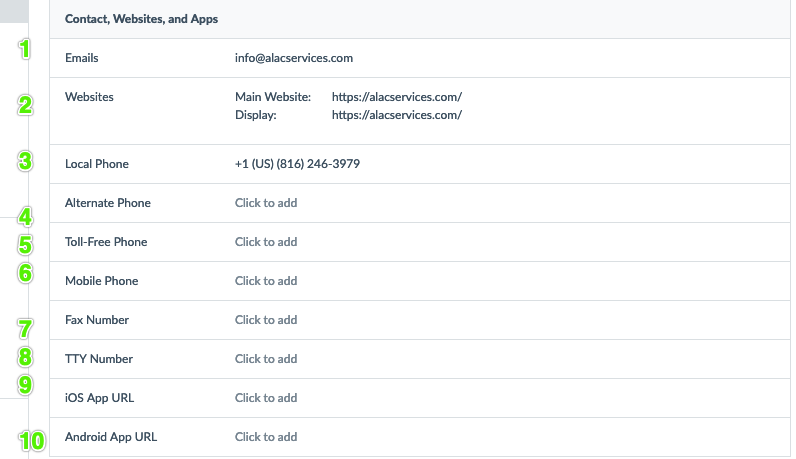
- Emails
- Add any email addresses that your client uses for contact.
- Example: [email protected]
- Example: [email protected]
- Add any email addresses that your client uses for contact.
- Websites
- Enter the business's main website into the "Main Website" field
- If the website has HTTPS:// enabled on its website you MUST include HTTPS:// in Yext as well.
- Typically, you'll only be adding one website. Examples for when you'd add another website for a business include:
- The business has an eCommerce shop on a subdomain separate from the main domain (IE. shop.alacservices.com)
- The business has a promotional website(s)
- Enter the business's main website into the "Main Website" field
- Local Phone
- Include the business's local phone number
- Most of the time, you'll simply be copying the "Main Phone" field from the Yext core information you filled out earlier
- Include the business's local phone number
- Alternate Phone
- If the business has defined that it has any alternate phone numbers fill out this field
- Toll-Free Phone
- If the business has a 1-800, 1-888, or other toll-free numbers, enter them here.
- Mobile Phone
- If the business has claimed it has a mobile phone number that is separate from the "Main Phone", enter it here.
- Fax Number
- If the business has a fax number, enter it here.
- TTY Number
- If the business has a TTY number (phone number used for the deaf or hard of hearing), enter it here.
- iOS App URL
- If the business has an app on the iTunes / Apple Store, enter the URL to download it here.
- Android App URL
- If the business has an app on the Google Play Store, enter the URL to download it here.
Setting Up Media
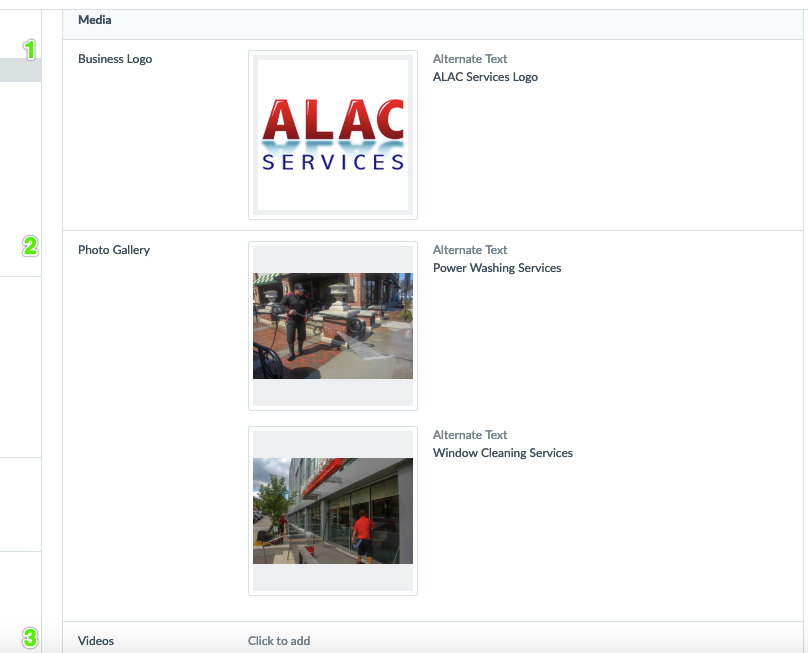
- Business Logo
- Add the business logo
- If you cannot locate the business logo, the simplest way would be to check the business's website
- Make sure you also add relevant alt-text
- Add the business logo
- Photo Gallery
- At the minimum, add 2 relevant photos showcasing your client's services or offerings.
- Make sure you add relevant alt-text describing the picture
- Attempt to use relevant keywords focused on the business's services if you can
- Videos
- If the business has a relevant video showcasing its services or generally stating the mission statement of the business, add it here.
- If your client does not, this is an opportunity to offer video services
Setting Up Social Media
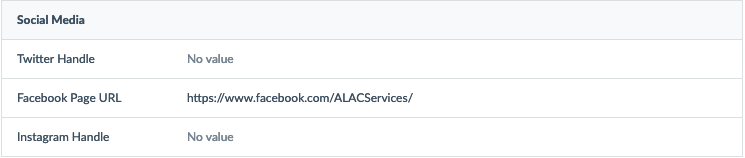
- Fill in All Social Medias
- If you do not know the client's social media, simply google the following:
- [Business Name] Twitter
- [Business Name] Facebook
- [Business Name] Instagram
- If you cannot find or your client does not have Facebook or Instagram this is an opportunity to offer them organic social services.
- If you do not know the client's social media, simply google the following:
Setting Up Enhanced Content Lists
Local SEO and account services will only handle creating product lists, not staff lists. Please see below for the initial product/service list set up.
Naming the List and Setting the Business

- Go to: Knowledge Manager>Products & Services
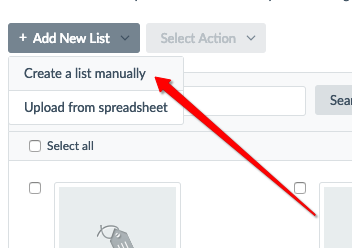
- Go to: Add new list>Create a list manually
- Name Your List Appropriately (IE. Services, Offerings, Etc.)
- Select "Select an entity..." next to "Associate with"
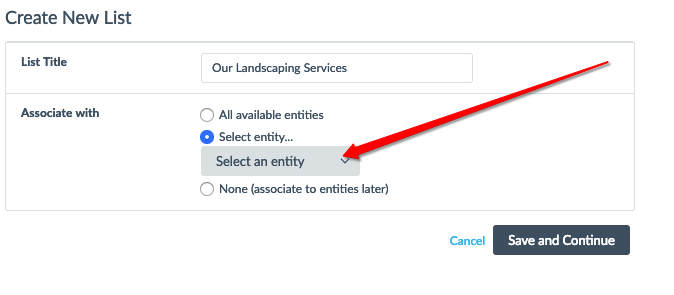
- Select the business you are creating the list for and then select "Save and Continue"
Creating the List and the First Section
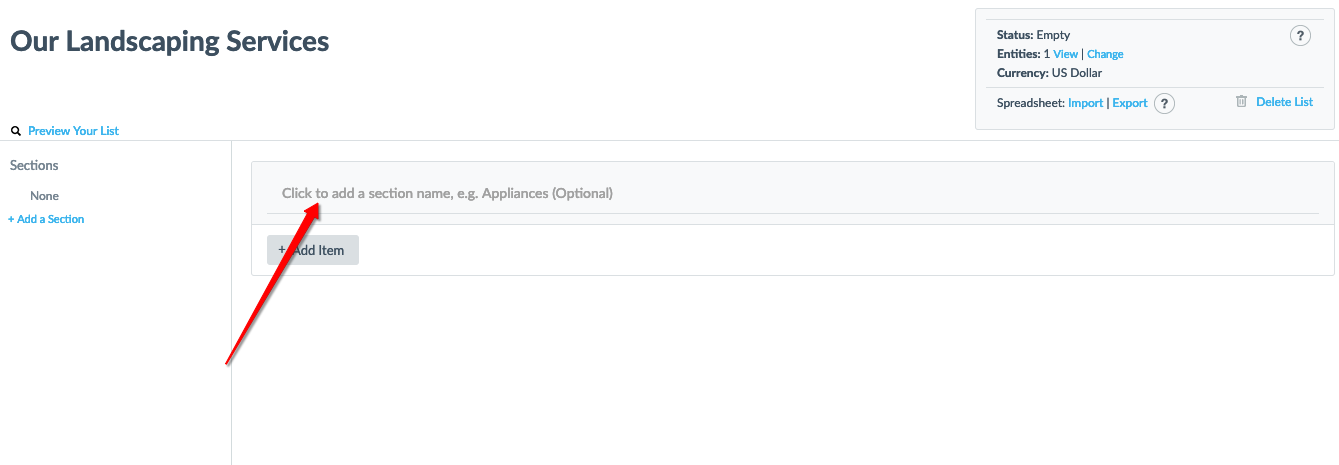
- Click the above section to add a section name
- A section name should be a parent or grouping item for the rest of your services
- There is no need for a section description
- Once you've named your section select "+Add Item"

Adding a Product or Service
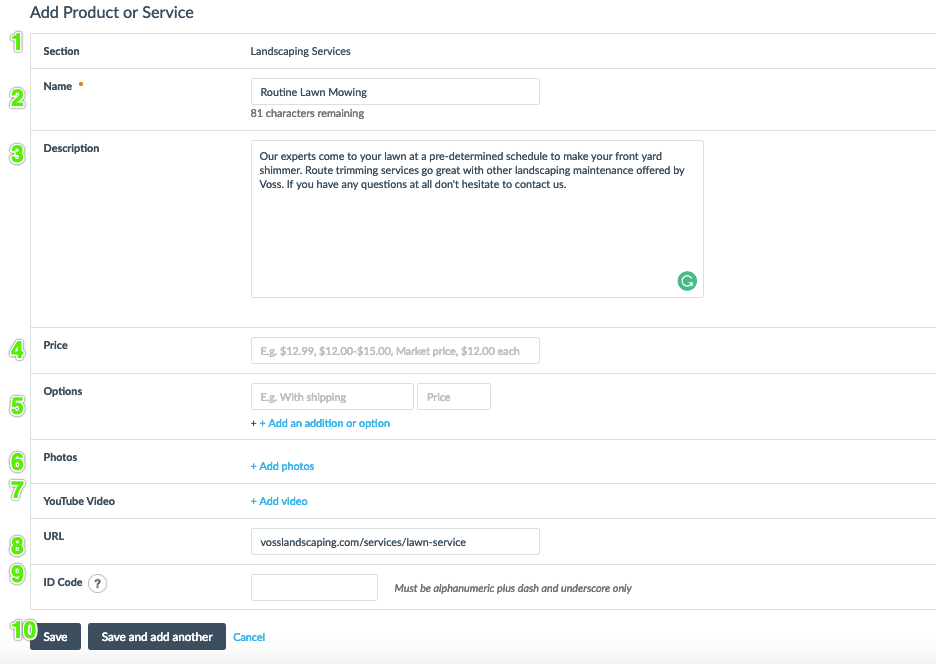
- Section
- The section name for the item you're adding. You cannot change this here.
- Name
- Name of the product or service, you must fill this out
- Description
- A short description of the product or service at least 200 characters.
- You may simply copy and paste information from the product page on the business's website if available. If not, you'll have to create your own
- Price
- The price of the product or service
- Only add this if you are 100% certain that the price of the product or service does not change
- Never add this for quotable work or services
- Options
- You may ignore this field
- Photos
- If you have a relevant photo from the business, include it here.
- YouTube Video
- If you have a relevant YouTube URL from the business, include it here
- URL
- If there is a relevant product or service page on the businesses' website, include it here
- ID Code
- You may ignore this field
- Save
- After filling in all the above information, click this button.
- Repeat steps 1-10 for all the products offered in each section
Adding an Enhanced Content List
- Go to the Yext Page for the Business and Scroll to "Enhanced Content Lists"
- Fill in the "Display Link on Publisher Website" field with the Same Name as the List
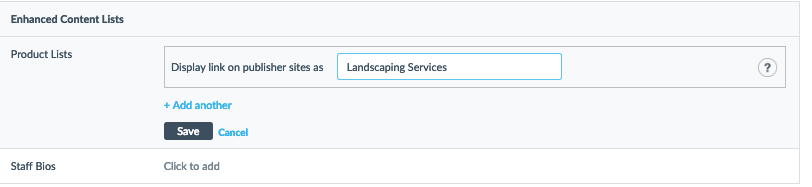
- Select "Add Another" and choose the content list you previously created
Setting Up Additional Attributes
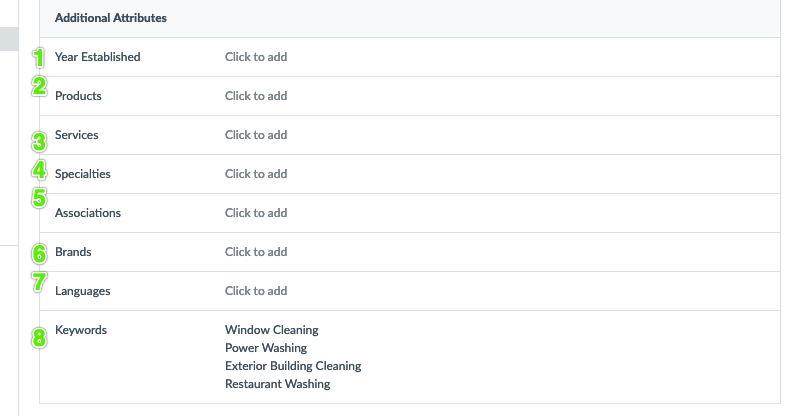
- Year Established
- Enter the year the business was established
- Products
- Leave this field blank. Any products will be handled by the enhanced content lists
- Services
- Add any main services offered by the business
- Specialties
- Leave blank, this is generally redundant of services.
- Associations
- Enter any associations the business belongs to
- Brands
- Enter any relevant information on branded items the business offers
- Languages
- Enter any languages the business speaks
- Keywords
- Enter the main services or products the business offers
Setting Up Google My Business Fields
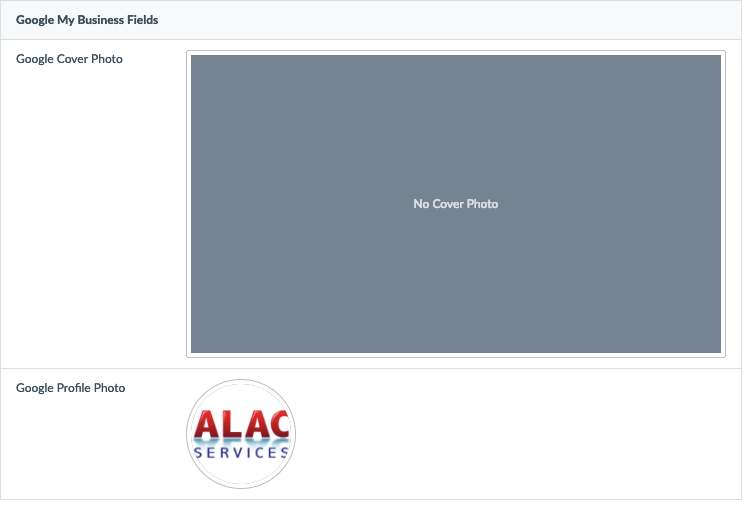

- Google Cover Photo
- There is no need to complete this field. Google Cover photos are used for Google+ which is now obsolete
- Google Profile Photo
- Submit the logo of the business to this field.
- Google Profile Photos are displayed when responding to reviews or making posts
- If you cannot find a logo of the business, try checking the website.
- Google My Business Attributes
- Fill in all relevant information
- These fields vary widely by business type and the content of business's reviews.
- Common Attribute Fields Include:
- Veteran-Led
- Women-Led
- LBGTQ Friendly
- Happy Hour
- Good for Children
Setting Up Facebook Fields
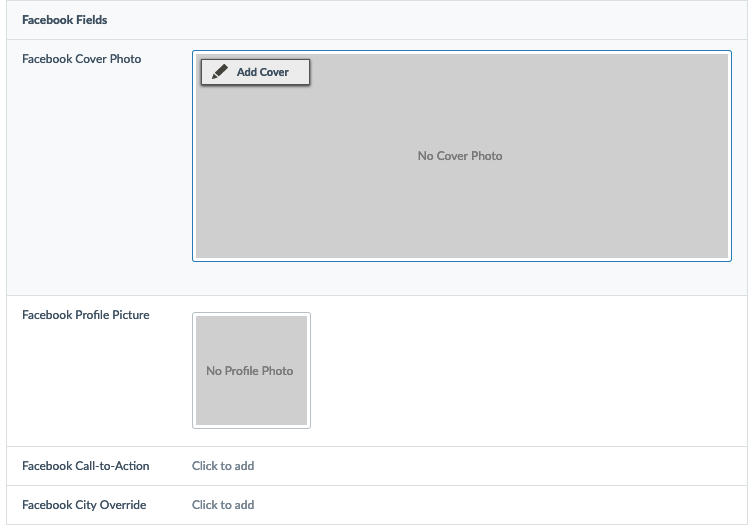
- Ignore all Facebook Fields
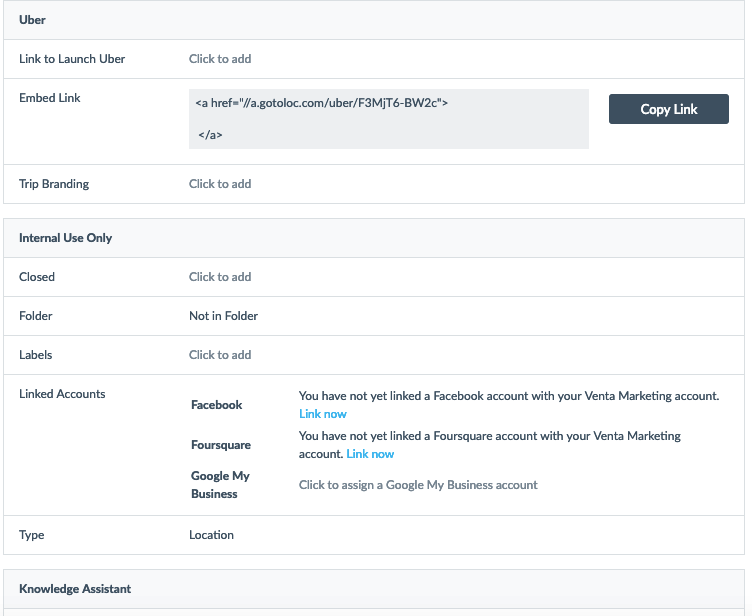
Setting Up Uber, Internal Use Only, Knowledge Assistant
- You may ignore all of these fields as well