Overview
Projects will be used for any actionable request from a client. In TeamWork, a client will be referred to as a ‘Company’, and Companies can have as many ongoing Projects as necessary. For example, if we are running a marketing campaign for a Company and also building a new website, these should be 2 separate Projects. Projects can also be used for ad hoc requests, such as website maintenance or add-ons.
Hierarchy
Company –> Project –> Task List –> Tasks –> Subtasks
Adding a Project
From the Dashboard or Projects tab, click the ‘Add Project’ button. You can also use the Quick Add button in the top right header. A box will appear prompting you to fill out the necessary information for the new Project.
- Name the Project one of the following:
- Marketing Campaign
- Website Maintenance (in the case of single website for company)
- Website Maintenance – Website Name (in the case of multiple websites for company)
- Hosting of website url
- Website (in the case of single website for company)
- Website – Website Name (in the case of multiple websites for company)
- System – Name of System
- Provide description
- Project description
- Link to contract and proposal that is in their Google Drive folder
- Choose the Company
- Select ‘No, this project is for our company’ if this is an internal project
- Select, ‘Yes, this project is for an external company’ if it is for a client
- Select from existing Companies or enter the name of a new Company
- Add appropriate Users to the Project
- Select either individuals or a team to be added to the project
- Select a project owner (this will be the AM or PM on the account)
- Custom Fields
- Billing Increment (all new website clients get 10)
- Department – Marketing or Engineering
- Include time details in invoice – yes or no
- PM for Engineering and or PM for Marketing
- Click ‘Add Project’ to create new Project
Settings
- General
- Verify all settings are correct
- Add company logo to Project Logo
- Project Budget
- Set hours of billable time (engineering only)
- Repeat budget (set start and end date for the budget which may or may not be different than the project)
- Engineering – if you have a monthly budget
- Marketing – divide monthly retainer by $150/hour and input monthly budget (set your repeat to custom and set to 1 month)
- Notifications
- Add notifications for
- 50% – Account Manager or Project Manager
- 75% – Account Manager or Project Manager
- 90% – Account Manager or Project Manager + VPs
- 100% – Account Manager or Project Manager + VPs
- Add notifications for
- Integrations
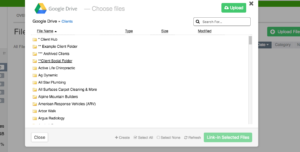
- The Admin should now click ‘Integrations.’ From here you can choose the parent folder from Google Drive to integrate with this Project and restrict access by User if necessary. This will allow Users to attach files, access collateral associated with the client or share and edit Google docs/sheets directly within TeamWork.
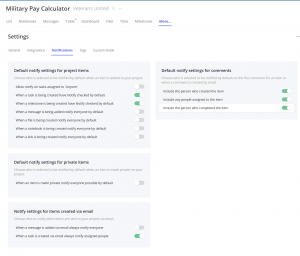
- Notifications should look like this:
Dashboard
Set start and end date if applicable
Milestones
Milestones can be used to signal end dates of Projects or major phases throughout the Project. For example, if a client absolutely needs a website launched by the end of the month, you can create a Milestone that will be displayed prominently on the User’s Calendar, Project Calendar, and Project Gantt Chart. This can be a visual aid to ensure the Project scope is not extended beyond this date.
All projects should have milestones for:
- Kick off
- Discovery/planning
- Launch
- For Engineering:
- 1 month checkins
- 3 month checkins
- 6 month checkins
- 1 year checkins/1 year celebration
Messages
Messages can be used to convey more information about the Project. If detailed instructions are necessary, the Project Manager can create an initial Message for the Users. This would also be a good place to include instructions or correspondences with the client. It can also be used to communicate with different Users on the Project, as you will have the option to notify 1 or multiple Users via email.
Files
Any relevant files for the Project should be added to the main Files tab including the contract and proposal. They can later be attached to specific Tasks as well. Once Google Drive is integrated, you will have the option to ‘Upload Files’ or pull from the parent folder in Google Drive. This is also where Google Docs/Sheets/Presentations can be created for the purpose of collaboration.